Running a query in the Luminesce Query Editor takes one key press, and you can watch it work as it goes: which providers it calls, how long each takes, and where it went wrong if it fails. Long queries run on the server, so you can carry on in another tab, or run several at once, while you wait.
Prerequisites
Access to the Luminesce Query Editor in the LUSID web app, under Data Virtualisation > Query Editor.
Permission to use the providers your query reads from. The Catalogue lists the ones you can use.
Methods
Method 1: Run a query
Write or open the query in a tab.
Select Run, or press Shift+Enter.
While it runs, the status beside the toolbar shows In progress. When it finishes, the status changes to Succeeded and the results appear under the editor. If it fails, the status shows Failed. See Method 5.
If the query has parameters, Luminesce asks for their values first. See How do I use parameters in a query?
Method 2: Run part of a query
To run one statement of a longer script, or check part of a query before you run the rest:
Highlight the part you want to run.
Select Run, or press Shift+Enter.
Only the highlighted text runs. The rest of the query is unchanged, and your cursor and selection stay where they were.
Method 3: Choose what you see while it runs
The log menu on the toolbar decides what you see while a query runs. Your choice is remembered.
Option | What you see |
|---|---|
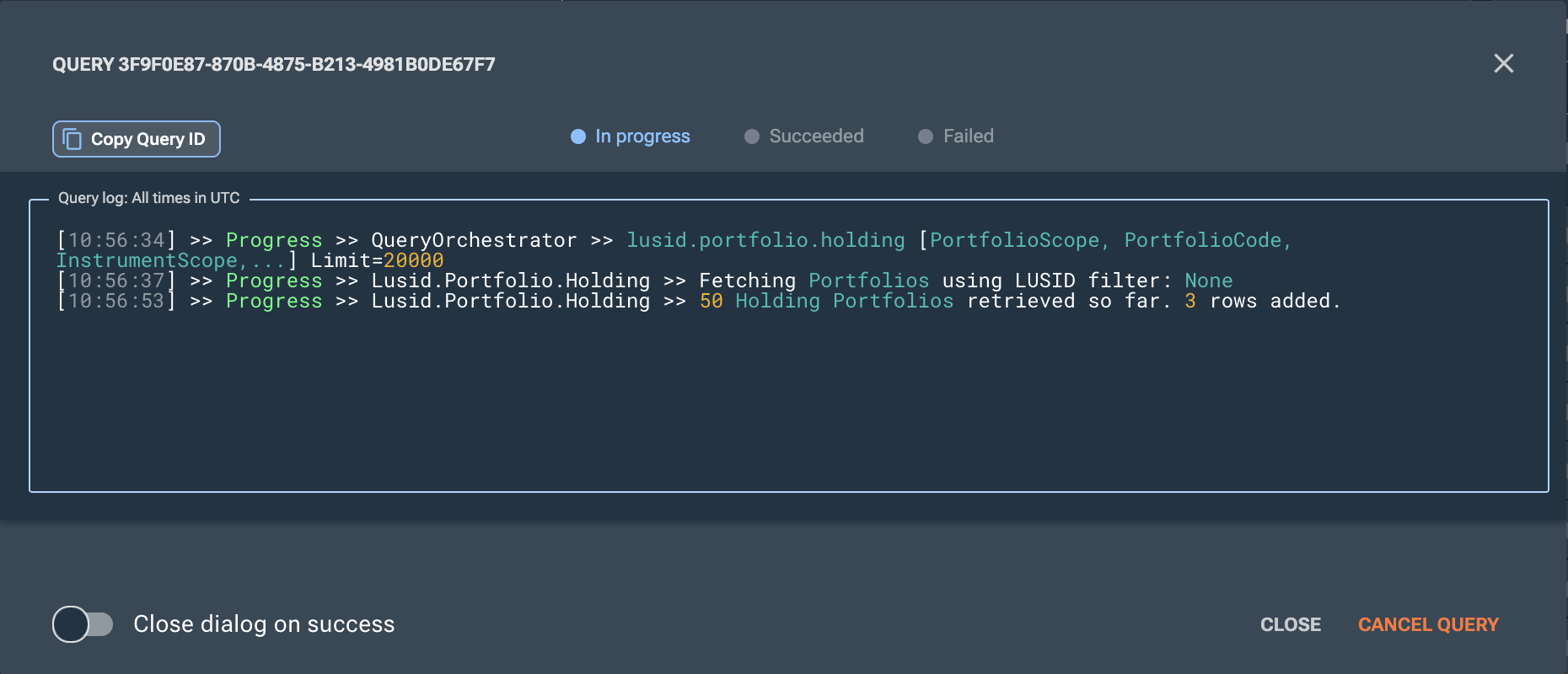
Show log | A progress window with the query's log as it runs. It stays open when the query finishes. |
Hide log | No window. The status beside the toolbar shows progress, and the results appear when the query finishes. |
Show log and close on success | The progress window, which closes by itself if the query succeeds. If it fails, the window stays open so you can read why. |
The progress window shows the log with all times in UTC. From it you can:
Copy Query ID: copy the query's ID, for example to find it later in History or to send to FINBOURNE Support.
Copy Log: copy the whole log.
Turn on Close dialog on success for this run.
Select Cancel query to stop the query.
Closing the window doesn't stop the query. It carries on running, and its results appear in the tab when it finishes.
Method 4: Cancel a query
While the query runs, select Cancel beside the status, or Cancel query in the progress window.
Confirm with Yes, abort. To let it carry on, select No, Continue running.
Method 5: Find out why a query failed
When a query fails, select Run details beside the status.
For a query that ran and failed, Luminesce opens the run on the History page, at its log, so you can see which step went wrong.
For a query that couldn't start, for example because the request was refused, Luminesce shows the error.
For a query set, Luminesce reopens the set's progress window, with a log for each of its queries.
Every run is kept on the History page, whether it succeeded or not. See How do I find and re-run a past query?
Method 6: Run several queries at once
Each tab runs its own query, so you can start a query in one tab and carry on working, or start another, in the next. Each tab keeps its own status and results. To run several queries that depend on each other, write them as a query set. See How do I run several queries together as a query set?
Troubleshooting
Run is greyed out
The editor is empty, or the tab's query is already running. Wait for it to finish, or cancel it.
Run details is greyed out
You don't have access to the History page. Hover over the button to see why, and ask your LUSID administrator if you need access.
Related articles
How do I diagnose a failed query?, to look into a failed run in depth with LumiCode