Once a query gives you the answer you need, you can have it run by itself every morning, every hour or on any timetable you like. The Luminesce Query Editor turns the query into a schedule in the LUSID Scheduler in a few steps, and it runs whether or not you're signed in. Have the query save its results to Drive or write them back to LUSID, and the work is done before anyone opens it.
Prerequisites
Access to the Luminesce Query Editor in the LUSID web app, under Data Virtualisation > Query Editor.
The Luminesce Query Runner job (
default/QueryRunner) set up in your domain. It runs your query each time the schedule fires. If it isn't there, ask your LUSID administrator.Permission to create schedules in the LUSID Scheduler. See Access control for Scheduler resources.
Note: If you are the LUSID domain owner, you are automatically assigned the built-in
lusid-administratorrole, which has all the permissions you need.
Method
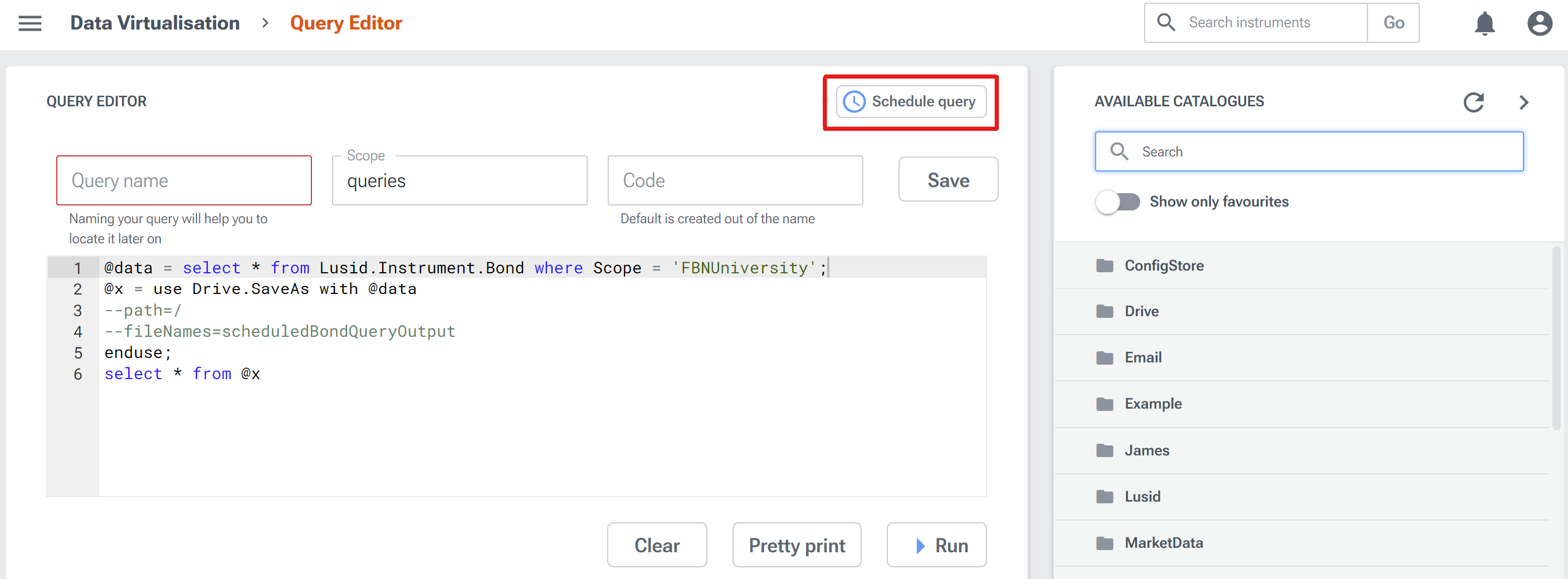
Step 1: Open the query and choose Schedule query
Write the query in the Query Editor, or open it from your Saved Queries.
Run it, to check its results are what you expect. A scheduled query runs with no one watching, so it's worth getting right first.
Select the arrow beside Run, then Schedule query.
The schedule runs the whole query in the tab, even if you've highlighted part of it.
Step 2: Name the schedule
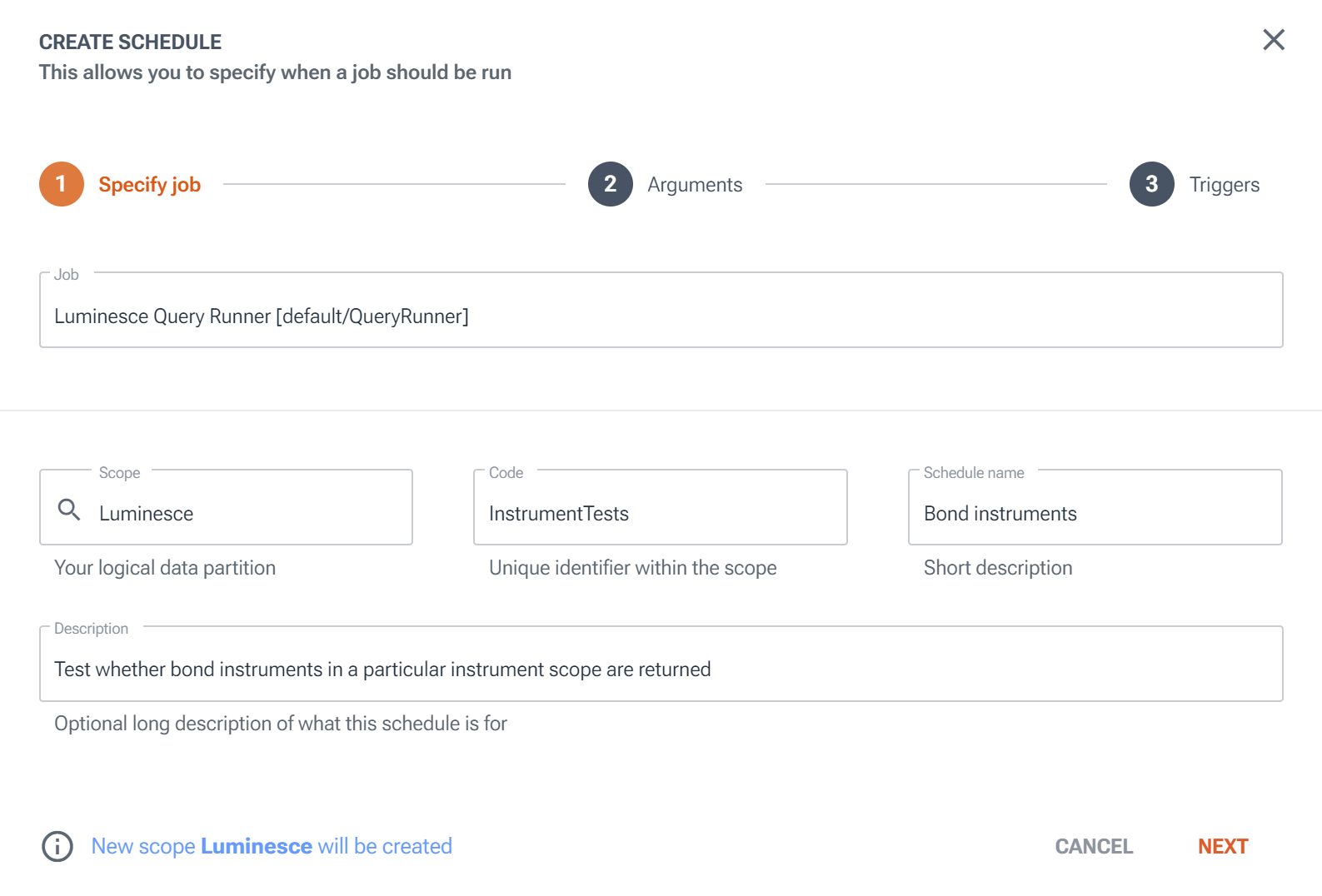
The Create schedule dialog opens on Specify job. The Job is already set to the Luminesce Query Runner, and can't be changed here.
Enter a Scope and a Code. Together they identify the schedule, so the code must be unique within the scope. You can choose an existing scope or type a new one.
Enter a Schedule name and a Description. Both are shown in the Scheduler, so make them say what the query is for.
Check the Job user. The schedule runs with this user's permissions, so the query can only use the providers and data they can. It's set to you to start with. You can also enter a service user, but not another person.
Select Next.
Step 3: Check the arguments
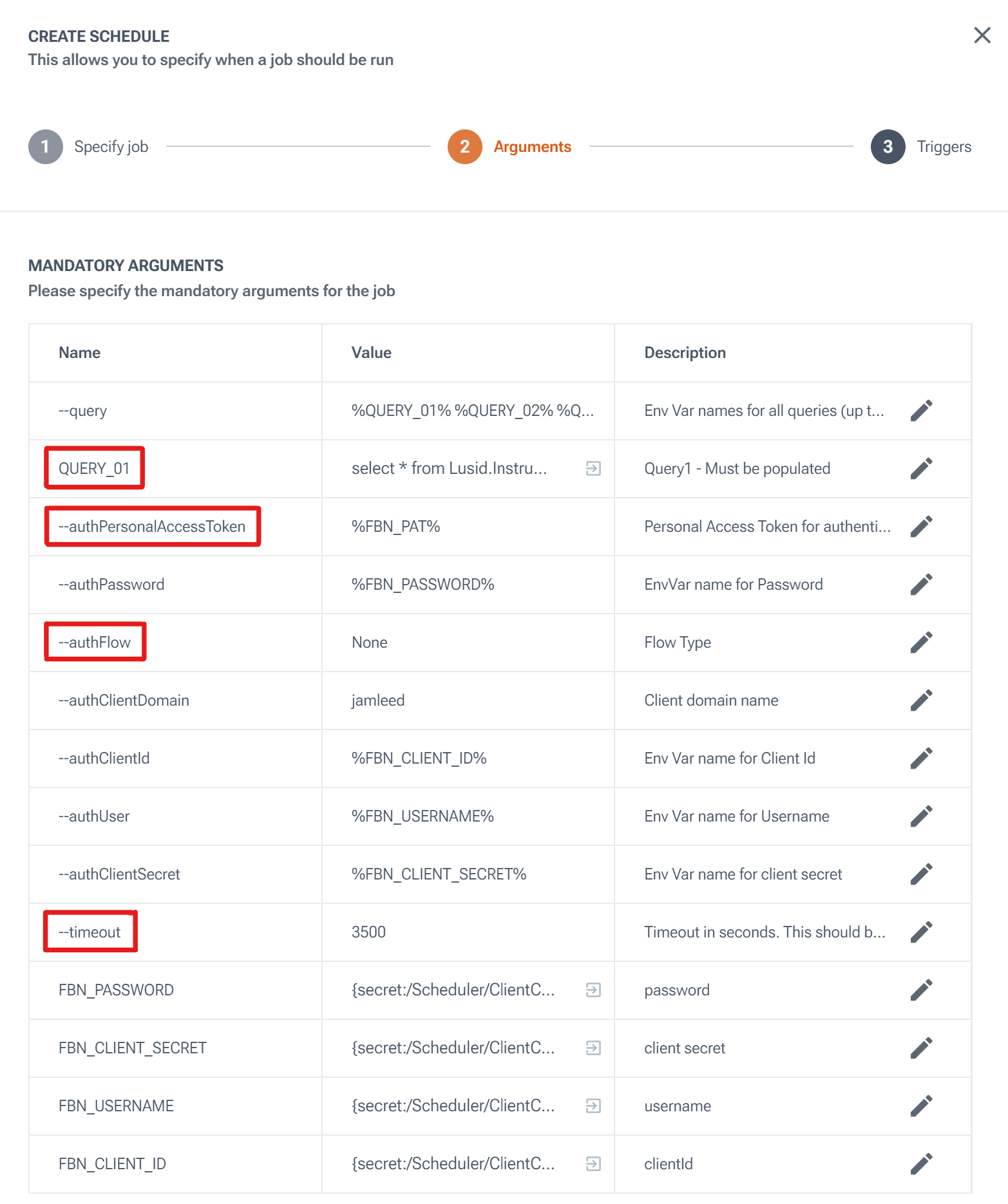
Arguments lists what the Query Runner job is given each time it runs, under Mandatory arguments and Optional arguments. Each starts at the value your domain's job gives it, and your query is in QUERY_01.
You don't usually need to change anything. The job's own values, such as how it signs in and how long the query may take (
--timeout), are set up by your administrator.To change a value, select the edit icon on its row. To read a long value, such as the query, select it.
Select Next.
Step 4: Choose when it runs
On Triggers, select Add trigger.
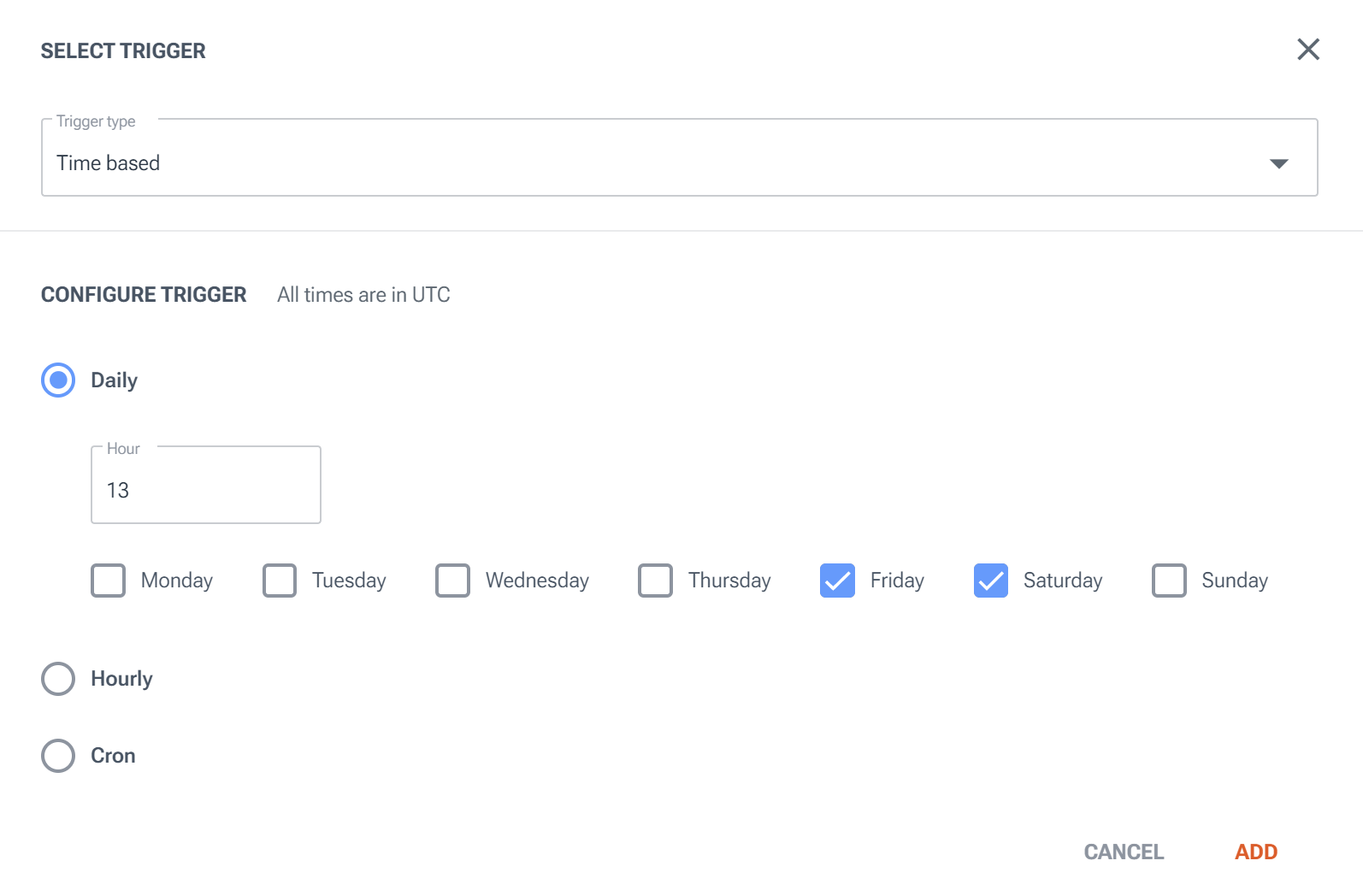
Leave Trigger type as Time based, and choose one of these:
Daily: enter the Hour to run at, such as
7or07:30, and tick the days of the week.Hourly: enter the Minutes past each hour to run at, and tick the days of the week.
Cron: for any other timetable, enter a Cron expression. The Scheduler uses Quartz cron expressions, which start with seconds: for example,
0 0 7 ? * MON-FRIruns at 07:00 every weekday. Select Cron references for a summary of the format.
Enter the Time zone the times are in. Type a city or a time zone name, such as
London, and choose it from the list.Select Add.
A schedule has one trigger. To change it, select the edit icon on its row. To run the query on a file arriving instead of at a time, choose File based or File based with window. See How do I create a schedule to automate job runs?
Step 5: Save
Select Save. A message confirms Your query job schedule was created. Select Go to Job Scheduler query page to see it among your schedules, or Close to go back to the Query Editor.
To try the schedule straight away rather than wait for its first run, select Jobs & Scheduling > Schedules, then Run now from its menu.
Getting the results
Each time it runs, the query's results are written to the run's console output, where you can read them but not work with them. To make the results useful, have the query itself send them somewhere. For example:
Save them as a file in Drive with Drive.SaveAs, ready for your team or another system each morning.
Write them to LUSID with a writer provider, for example to load prices or update instruments. See How do I write query results to LUSID with the writer designer?
For example, this query saves the day's holdings to a CSV file in Drive each time it runs:
@holdings = select PortfolioCode, LusidInstrumentId, Units, CostAmountPortfolioCurrency
from Lusid.Portfolio.Holding
where PortfolioScope = 'Finbourne-Examples';

@saved = use Drive.SaveAs with @holdings
--path=/reports/daily
--fileNames=holdings
enduse;

select * from @saved
Monitoring and troubleshooting
To see, edit, pause or delete the schedule, select Jobs & Scheduling > Schedules. To change the query it runs, edit the schedule and change
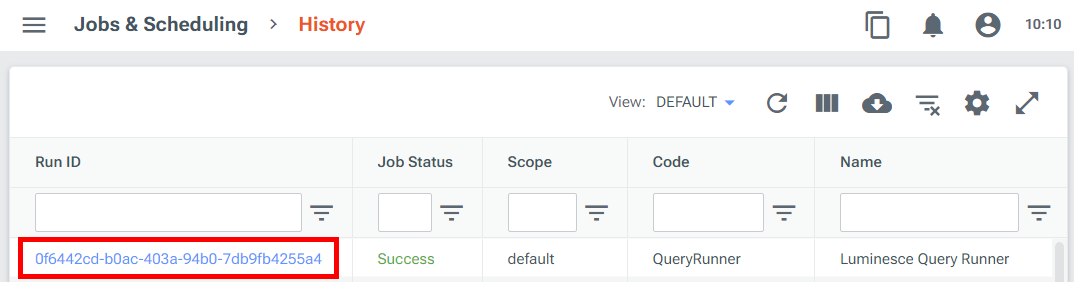
QUERY_01.To see each run, select Jobs & Scheduling > History, then a run's Run ID. The run's Console Output tab shows the query's results and messages.

You can also check on your schedule with a query. For example, this lists its failed runs and why they failed:
select RunId, StartDate, Message, Logs
from Scheduler.Job.HistoryWithLogs
where ScheduleScope = 'my-scope'
  and ScheduleCode = 'daily-holdings'
  and JobStatus = 'Failure'
See Scheduler.Job.HistoryWithLogs and Monitoring job run history and troubleshooting failures.
Schedule query is greyed out
The tab needs a query in it, and the query can't be running. A query set can't be scheduled as a whole: copy each query you want to run on a schedule into a tab of its own, and schedule it from there.
The scheduled query fails
Open the run from Jobs & Scheduling > History and read its Console Output. Check that the Job user can use every provider in the query, since the query runs with their permissions, not yours. If the query ran out of time, ask your administrator about the job's --timeout.
The query runs at the wrong time
Check the trigger's Time zone. In a cron expression, the first field is seconds, not minutes, and a day of the month and a day of the week can't both be set: one of them must be ?.
Related articles
How do I schedule a query from LumiCode?, for the same task in LumiCode