You rarely need to remember a provider's exact name or a field's spelling in the Luminesce Query Editor. It suggests them as you type, underlines mistakes before you run anything, tidies your SQL in one click, and can hand the whole job to Candela, FINBOURNE's AI agent, when you'd rather describe what you want.
Prerequisites
Access to the Luminesce Query Editor in the LUSID web app, under Data Virtualisation > Query Editor.
For Methods 1 and 2, Enable query editor autocomplete and Enable parse error underlining turned on, which they usually are. See Query Editor settings reference.
Methods
Method 1: Let autocomplete fill in names
Start typing and the editor suggests what can come next, from what you can use in your domain:
Providers and views after
fromorjoin.Type a dot to move down a level, for example
Lusid.thenPortfolio.Table variables (
@table) and cached table variables (@!table) as well as, in a query set, the names of the queries above, after@all show up here too as thet, like providers, are “tables of data”.
Fields and parameters of the providers in your query.
Functions, keywords, and your own and
@@scalarvariables.
Each suggestion says what kind of thing it is, and many show their documentation beside the list. Use the arrow keys to move through the list and Enter or Tab to insert one, or keep typing to ignore it.



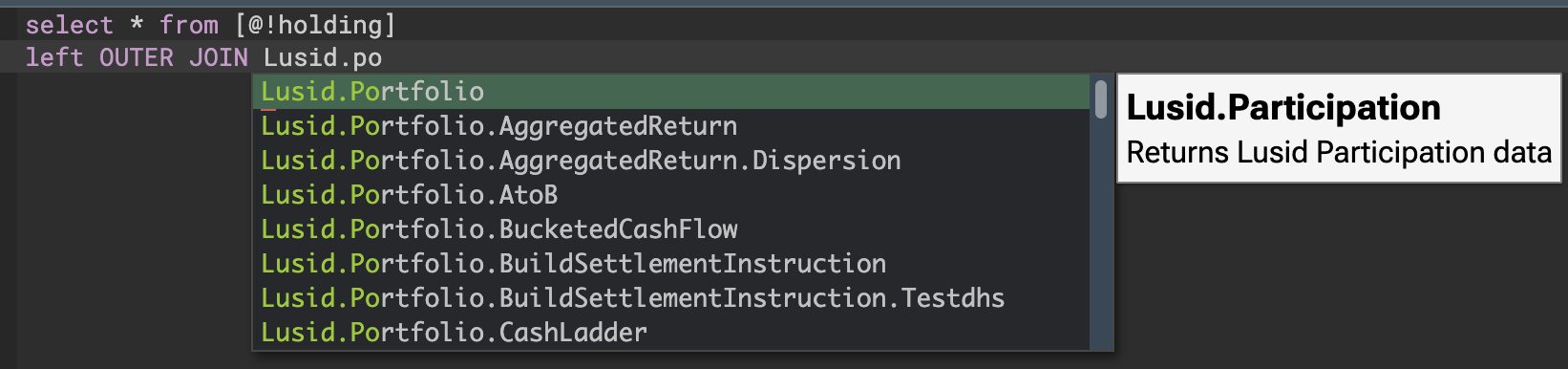
Functions all have their own detailed documentation, generally including links off to various documentation.

Method 2: Fix mistakes before you run
About a second after you stop typing, the editor checks your SQL and underlines anything Luminesce can't understand, such as a misspelt keyword or a missing bracket. Fix the underlined part and the underline goes. In a query set, each query is checked on its own.
Method 3: Copy a name from the Catalogue
When you're browsing rather than typing, find the provider in the Catalogue and select Copy table name on its row, then paste it into your query. Expand the provider to see its fields and parameters. See How do I find providers and fields in the catalogue?
Method 4: Tidy and test as you go
Select Pretty print on the editor's toolbar to lay out your query with consistent line breaks and indents.
Highlight part of a query and press Shift+Enter to run just that part, for example to check one table variable before you build on it. With nothing highlighted, Shift+Enter runs the whole query.
Select the lock to make a tab read-only, so a query you're happy with can't be changed by accident.
Method 5: Build a query by pointing and clicking
Select Query designer on the toolbar to pick a provider, its fields, filters and joins from lists, and have the designer write the SQL. If you highlight a query first, the designer opens with that query loaded, so you can change it there.
Method 6: Ask Candela
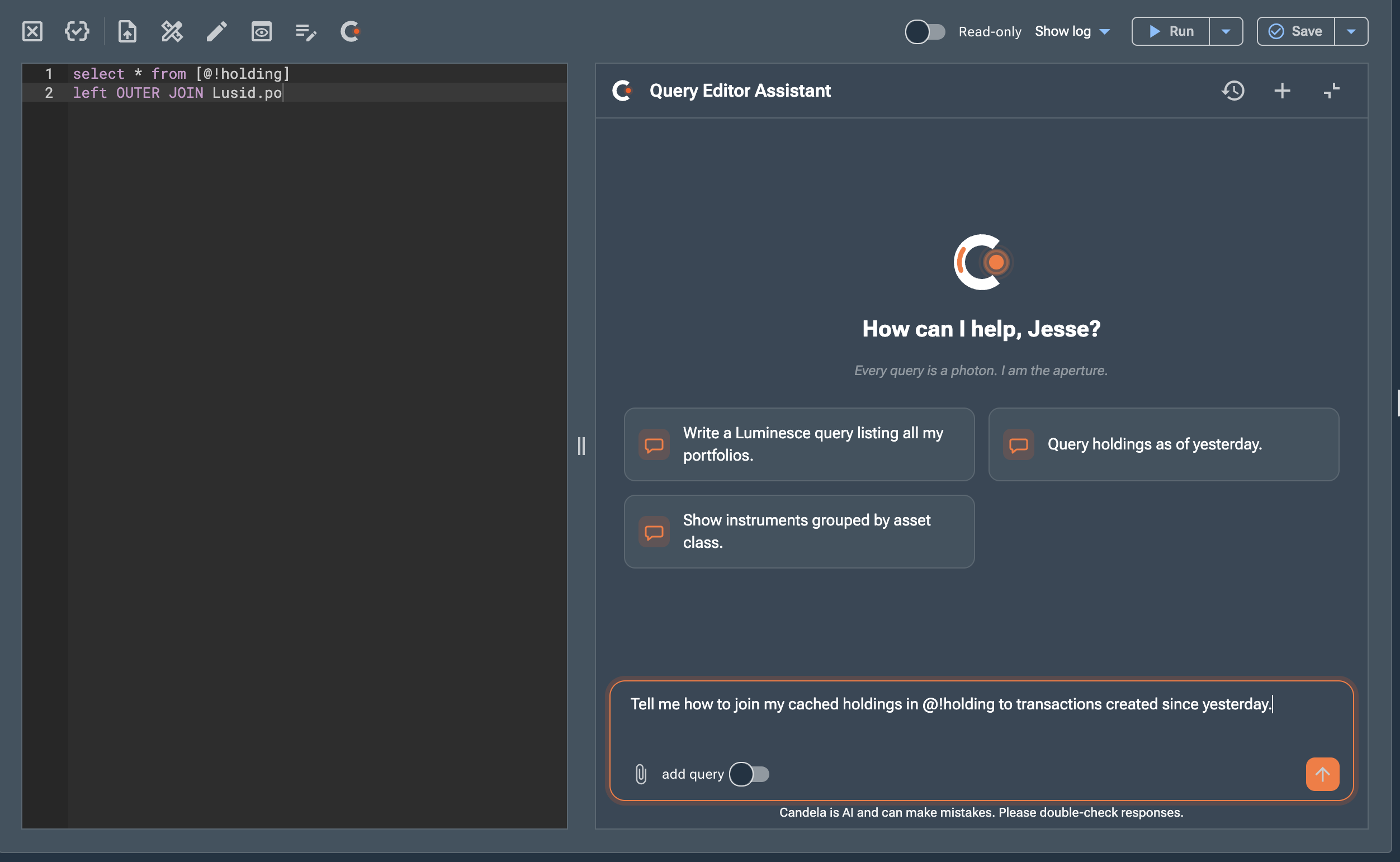
Select Query Editor assistant on the toolbar.
Describe what you want in plain words, for example "total units held per portfolio in Finbourne-Examples", or ask Candela to explain or fix the query in the editor. For Candela to see your query, turn on add query beside the prompt before you send; it sends the text you've highlighted, or the whole query if you haven't highlighted anything, and turns itself off after each message.
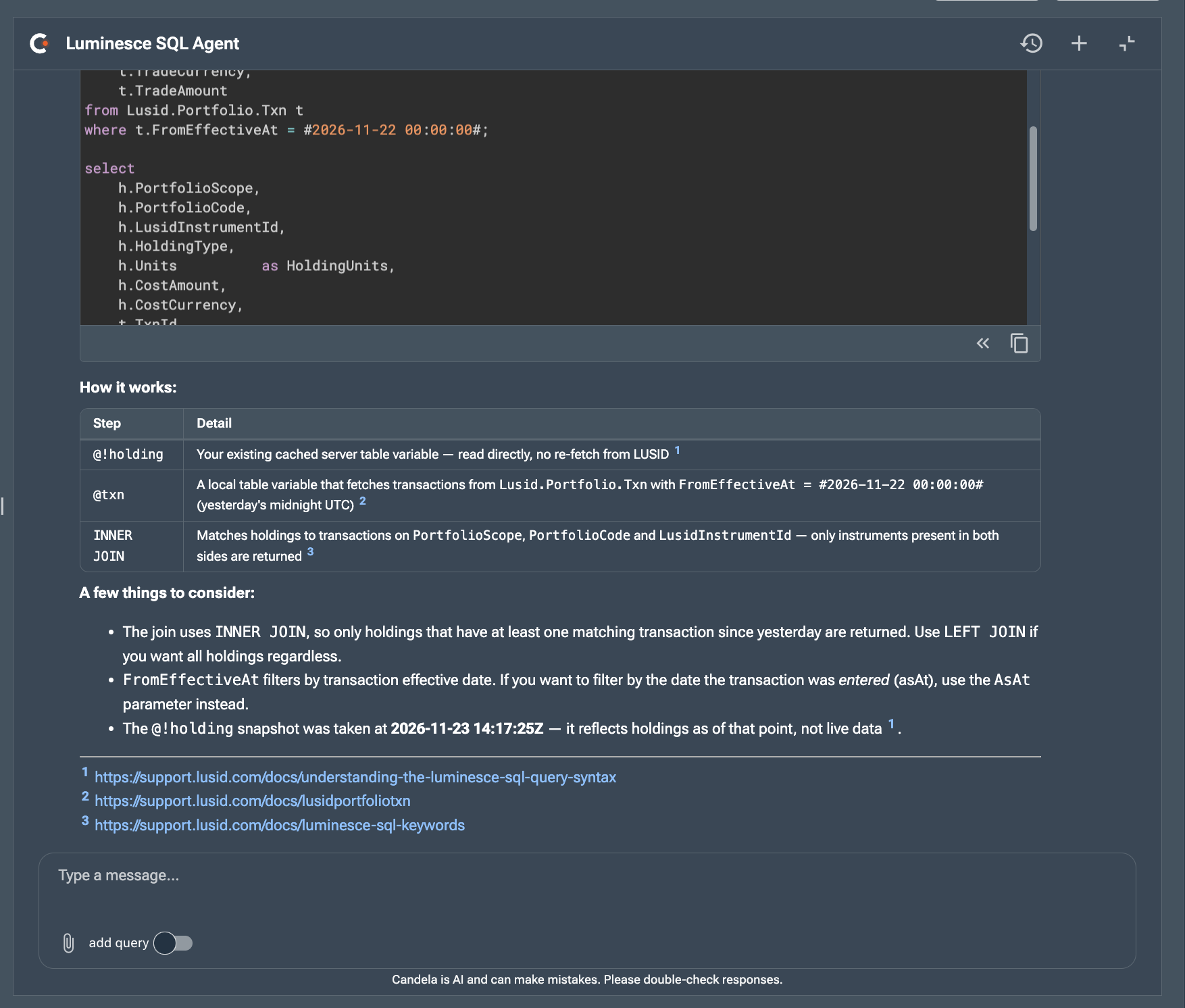
On a query Candela writes, select Add to query editor to add it to the end of your query, or Copy content to paste it where you like.
For more, see How do I use Candela in the Query Editor?
Candela availability
Candela is currently available to some customers only. If it isn't available in your domain, you don't see Query Editor assistant.
Troubleshooting
No suggestions appear
Check that Enable query editor autocomplete is on, on the Data Virtualisation > Settings page. An alternative to that is simply to hit CTRL+SPACE whenever you wish to explicitly open the context help.
A provider you don't have permission to use is never suggested; if you expect one that isn't there, ask your LUSID administrator.
Add to query editor does nothing
The tab is read-only. Select the lock to unlock it, or open a new tab, then try again.