Describe the data you want in plain words, and Candela, FINBOURNE's AI agent, writes the Luminesce SQL for you, right beside the editor. It looks up the providers and fields in your own domain and checks the query parses before it hands it over, so what you get is ready to run. It can also explain or fix a query you've already written.
Candela availability
Candela is currently available to some customers only. If it isn't available in your domain, you don't see Query Editor assistant on the toolbar, and everything else in the Query Editor works as usual.
Prerequisites
Access to the Luminesce Query Editor in the LUSID web app, under Data Virtualisation > Query Editor.
Candela enabled for your domain.
Methods
Method 1: Ask Candela to write a query
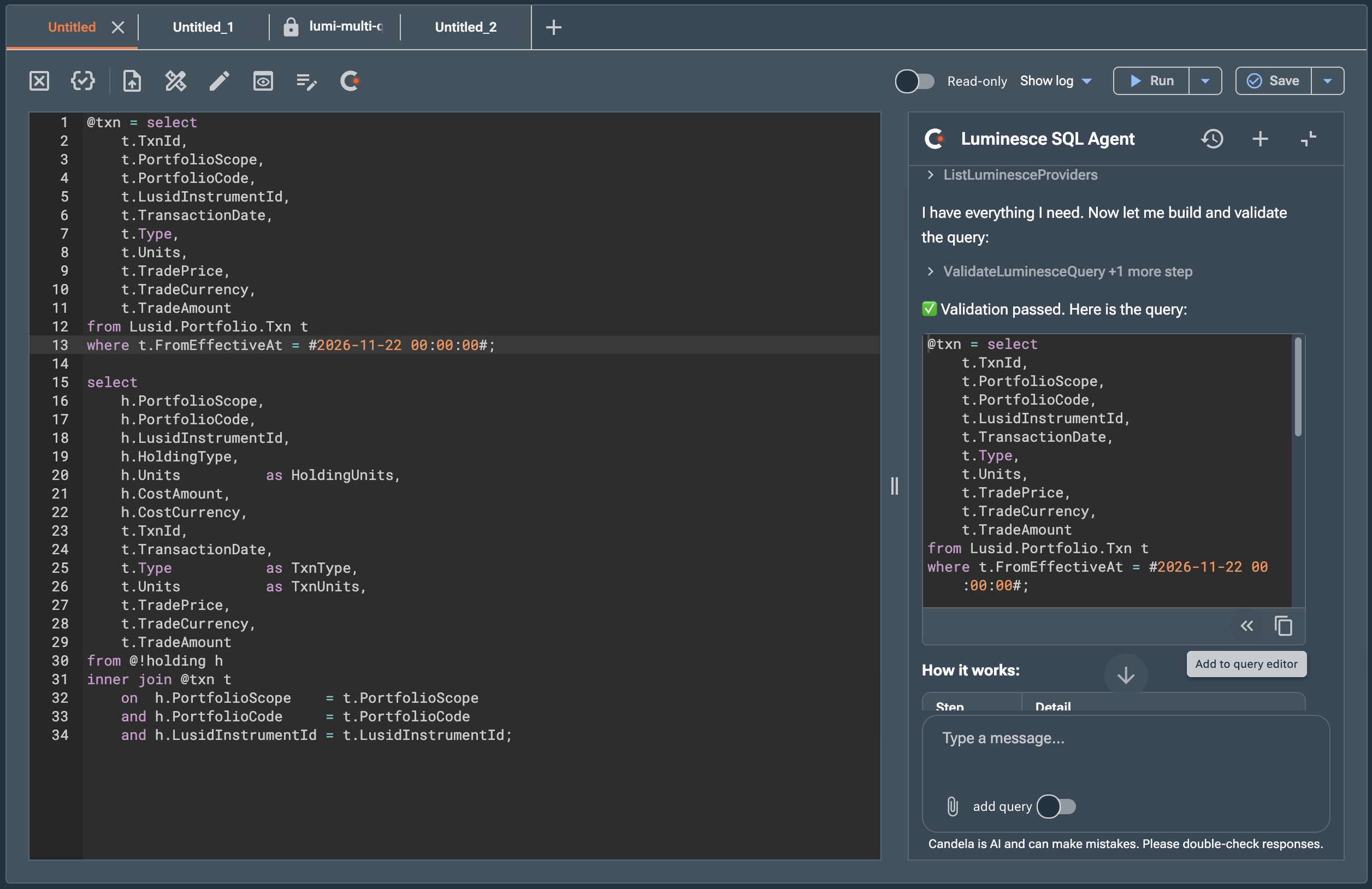
Select Query Editor assistant on the toolbar. The Query Editor Assistant opens beside the editor.
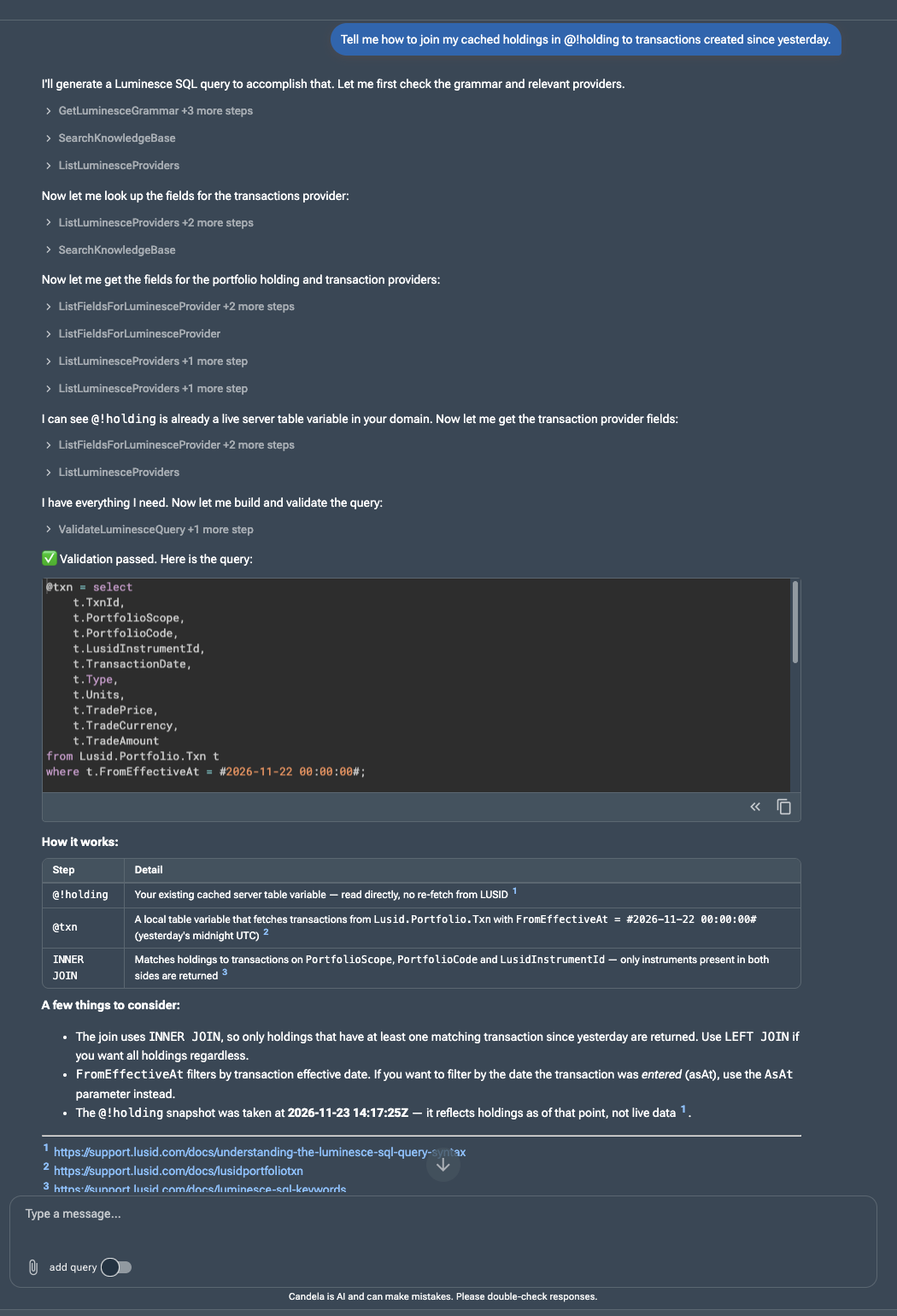
Describe what you want, for example "total units held per instrument in the Finbourne-Examples portfolios", and send it.
Candela finds the providers and fields it needs in your catalogue, writes the query and checks that it parses. When it's done, its answer includes the query.
On the query, select Add to query editor to add it to the end of what's in the editor, or Copy content to paste it where you want it.
Run the query and check the results.
Candela checks that a query is valid, but it doesn't run it, so always look at the results before you rely on them. It only uses providers you have permission to query.
Method 2: Ask about the query in the editor
Candela doesn't see what's in the editor unless you send it.
To ask about part of the query, highlight it. Otherwise Candela gets the whole query.
Turn on add query beside the prompt.
Ask your question, for example "Why does this return no rows?", "Can this run faster?" or "Add the instrument's name to this", and send it.
add query turns itself off after each message, so turn it on again whenever you want Candela to see the latest version of your query.
To ask about an existing view, name it. Candela reads the view's own definition before it answers, rather than guessing from its name.
Method 3: Manage your conversations
Your conversation is kept while you work: select Minimise to hide the assistant, and Query Editor assistant to bring it back where you left off.
Select New chat to start again, Chat history to go back to an earlier conversation, or Delete chat to remove one.
Select Upload file to give Candela a file to work from, such as a sample of the data you want to query.
Method 4: Use Candela elsewhere in the Query Editor
Explain a result: in the lineage window, switch from Graph to Explain to have Candela describe in plain words how a result or column was worked out. See How do I see where a value in my results came from?
Write to LUSID: in the writer designer, select Writer Designer assistant to have Candela choose the writer and map your columns to its fields. See How do I write query results to LUSID with the writer designer?
Tips for good results
Name the things you mean: a portfolio scope, a provider, a date range.
Ask for one change at a time when you're refining a query.
If an answer isn't right, say what's wrong with it, such as "that includes cancelled transactions", rather than starting again.
Troubleshooting
Candela answers as if it hasn't seen my query
Turn on add query before you send the message. It turns off after each one.
Add to query editor does nothing
The tab is read-only. Turn off Read-only, or open a new tab, then try again.
The query fails, or uses a provider I can't query
Tell Candela the error and ask it to fix the query, or ask it to use a different provider. Candela can only see providers you have permission to use.
Related articles
Understanding Candela's system agents, including the Luminesce Agent the Query Editor Assistant uses
How do I use Candela to write or fix a query?, for Candela in LumiCode