A query worth running once is usually worth running again. In the Luminesce Query Editor you can save a query, together with how its results are formatted, grouped and filtered, so you can open it again in seconds. Save it to a shared workspace and your colleagues can run it too, seeing the results laid out just as you left them.
Prerequisites
Access to the Luminesce Query Editor in the LUSID web app, under Data Virtualisation > Query Editor.
To save to a shared workspace, or move or delete what's in it, permission to change that workspace.
Where Saved Queries are kept
Saved Queries are kept in LUSID Workspaces, alongside your dashboards:
My Workspace is your own. Only you can see what you save there.
A shared workspace is open to everyone who has access to it, so it's where you keep queries for your team.
Within a workspace, each query has a Group and a name. Query sets are saved in the same way. See Workspaces and dashboard sets.
Methods
Method 1: Save a new query
In the Query Editor, select Save.
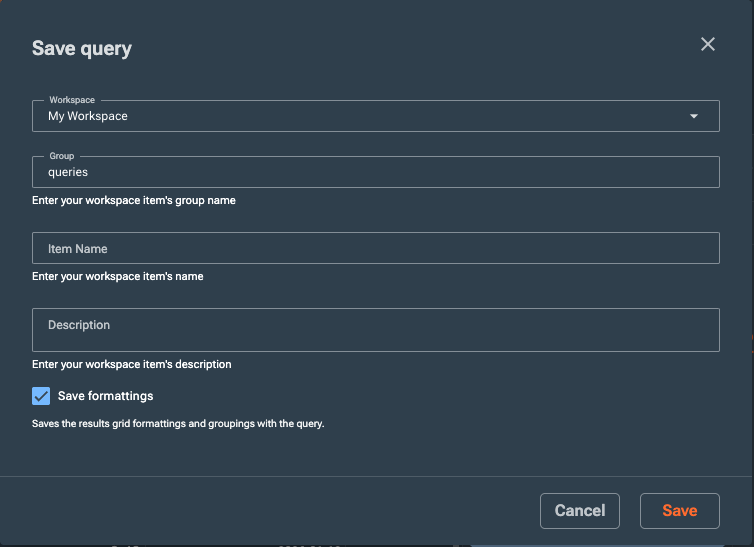
In the Save query dialog:
Workspace: My Workspace, or a shared workspace.
Group: a group to keep the query in, for example
queries.Item Name: the query's name. It becomes the tab's name.
Description: optional, but it helps others find and understand the query.
Save formattings: leave this ticked to save how the results are formatted and grouped with the query. It appears only when the results have formatting or groupings to save. See How do I format results?
Select Save.
Method 2: Save changes, or a copy
To save changes to a query you've already saved, select Save. It's available once you've changed the query or how its results are shown. Changes to the formatting are saved with it.
To save a copy under a new name, or in another workspace, select the arrow beside Save, then Save As.
If a query with the same name and group is already there, Luminesce asks whether to overwrite it.
Method 3: Open a Saved Query
From the Query Editor:
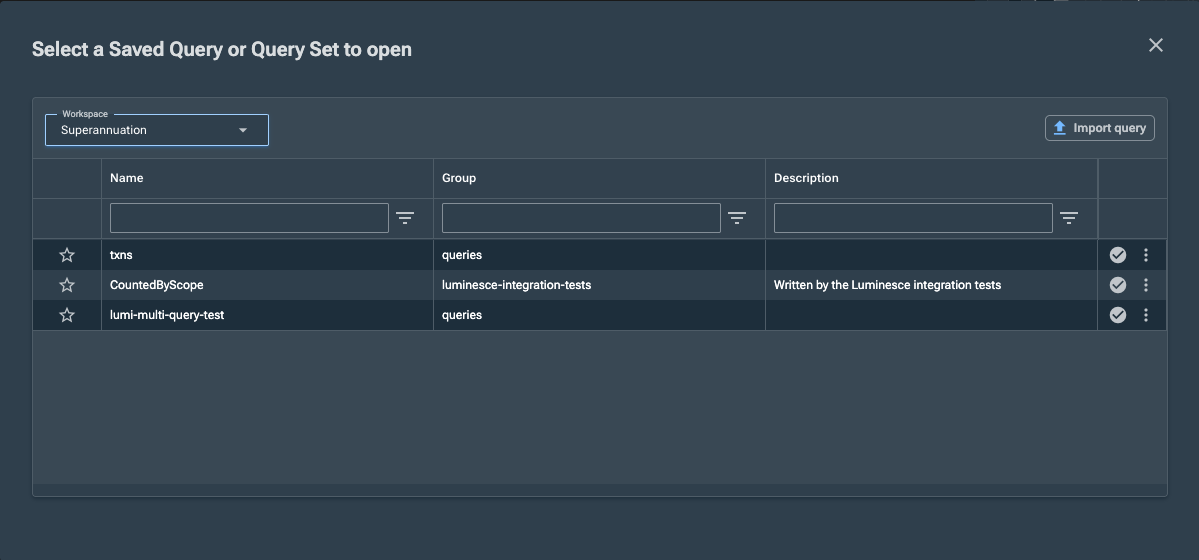
Select + above the editor, then Saved Queries.
Choose the query or query set. It opens in a new tab.
From the Data Virtualisation > Saved Queries page, choose the workspace, then use the buttons on the query's row:
Run opens the query in the Query Editor and runs it straight away. The tab is read-only, so the query can't be changed by accident, and the Catalogue is collapsed to give the results more room.
View / Edit opens the query in the Query Editor, ready to change.
To edit a query you opened with Run, turn off Read-only on the toolbar.
Method 4: Organise your Saved Queries
On the Saved Queries page, the workspace list offers Favourites, My Workspace, your shared workspaces and Create workspace. Each query's row has:
Favourite: add it to Favourites, wherever it's kept. Unfavourite takes it out again.
Duplicate: make a copy.
Move: move it to another workspace or group.
Export: download it as a file.
Delete: delete it.
In My Workspace, the list also shows when you last ran each query.
Method 5: Share a query
To share a query, save it to a shared workspace (Save As, if it's already saved), or Move it there from the Saved Queries page. Everyone with access to the workspace can then open and run it, with its saved formatting. To make a new shared workspace, choose Create workspace from the workspace list on the Saved Queries page.
You can also show a Saved Query on a dashboard. See Workspaces and dashboard sets.
Method 6: Import and export queries
To move a query between LUSID domains, or keep a copy outside LUSID:
On the Saved Queries page, select Export on the query's row. Luminesce downloads it as a file.
In the other domain, choose a workspace on the Saved Queries page and select Import query, or Import query set, then choose the file.
Importing a query with the same name and group as one that's already there overwrites it.
Troubleshooting
Move or Delete is greyed out
You don't have permission to change that workspace. Ask your LUSID administrator, or Duplicate the query into a workspace you can change.
I can't find a query I saved a long time ago
Queries saved before Saved Queries moved into Workspaces were moved across automatically. If one is missing, select Recover queries on the Saved Queries page. You can move them across again, or download them as files.
Related articles
How do I save queries and results?, for saving from LumiCode