Many values in your query results are links. Select an instrument ID to see the instrument, a portfolio code to edit the portfolio, or a job code to run the job, all without leaving the Luminesce Query Editor. The links follow your data through variables, joins and views, so your own queries get them too.
Prerequisites
Access to the Luminesce Query Editor in the LUSID web app, under Data Virtualisation > Query Editor.
Lineage turned on, which it is by default. Links travel with a result's lineage, so if Show query results lineage in editor is off on the Data Virtualisation > Settings page, your results have no links. Turn it on and run the query again.
Access to whatever a link opens. For example, the Edit portfolio dialog needs permission to edit portfolios.
Methods
Method 1: Select a value to open it
A value with a link is shown as a link in the results grid. Select it:
A link to a LUSID dialog, such as View Instrument, opens the dialog in place, over your results.
A link to another page, such as a portfolio's holdings dashboard or a request log in Insights, opens in a new tab.
A link to another website opens in a new tab.
Edit dialogs save real changes, just as they do elsewhere in the LUSID web app.
For example, run this query and select a value in the PortfolioCode column to edit that portfolio, or in the PortfolioScope column to open its holdings dashboard:
select PortfolioScope, PortfolioCode, DisplayName, BaseCurrency
from Lusid.Portfolio
limit 20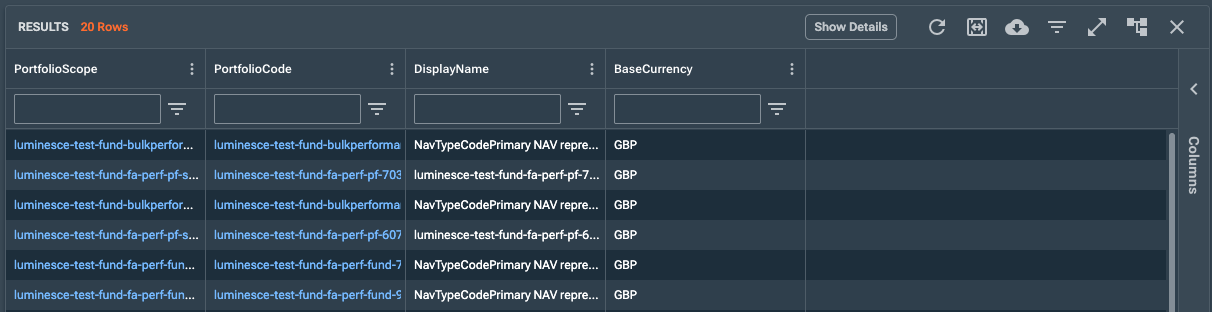
Method 2: Choose another link from a cell's menu
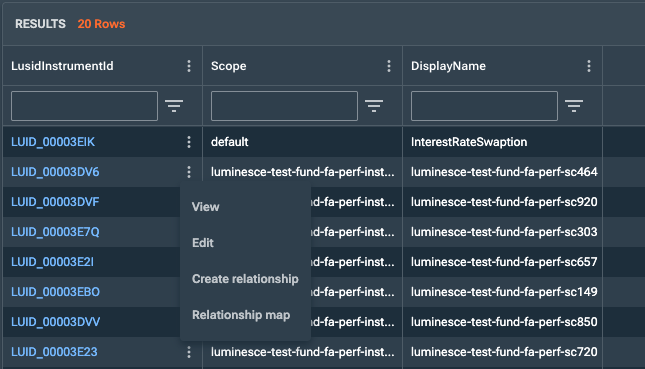
Some values have more than one link. The value itself opens the main one, and a ⋮ beside it lists the others.
Select ⋮ beside the value.
Select the link you want. A link marked with an open-in-new-tab icon opens in a new tab; the rest open a dialog in place.
For example, in this query each LusidInstrumentId opens the instrument, and its ⋮ menu offers Edit:
select LusidInstrumentId, Scope, DisplayName
from Lusid.Instrument
limit 20
A link only works when the query returns every column it needs, which is why this query returns Scope as well as LusidInstrumentId.
Method 3: Find out which columns have links
Every provider column with a link is listed in Sys.Field, with the address it links to. The columns named in curly brackets are the ones your query must also return:
select TableName, FieldName, ActionTemplate
from Sys.Field
where ActionTemplate is not null
order by TableName, FieldName
For a table of the links that come with Luminesce and LUSID, see the appendix of Understanding links in Luminesce query results.
Troubleshooting
A value isn't a link
The most common reasons are:
The query doesn't return every column the link needs, or one of them is empty on that row. Check the link's address in
Sys.Field(Method 3) and add the columns it names, under their original names.The column is calculated, for example
upper(DisplayName). Return the column itself alongside your calculation.Lineage is turned off. See Prerequisites.
You don't have access to the dialog the link opens.
For the full list, see Understanding links in Luminesce query results.
A link is greyed out
You don't have access to the page it opens. Hover over it to see which page; ask your LUSID administrator if you need access.