Every query you run is kept in your history, whether you ran it in the Luminesce Query Editor, LumiCode or through the API. The History page finds any of them in seconds, shows you what each one returned and why any failed, and puts a past query straight back in the editor or runs it again.
Prerequisites
Access to the Luminesce Query Editor in the LUSID web app, and to the Data Virtualisation > History page.
Methods
Method 1: Find a past query
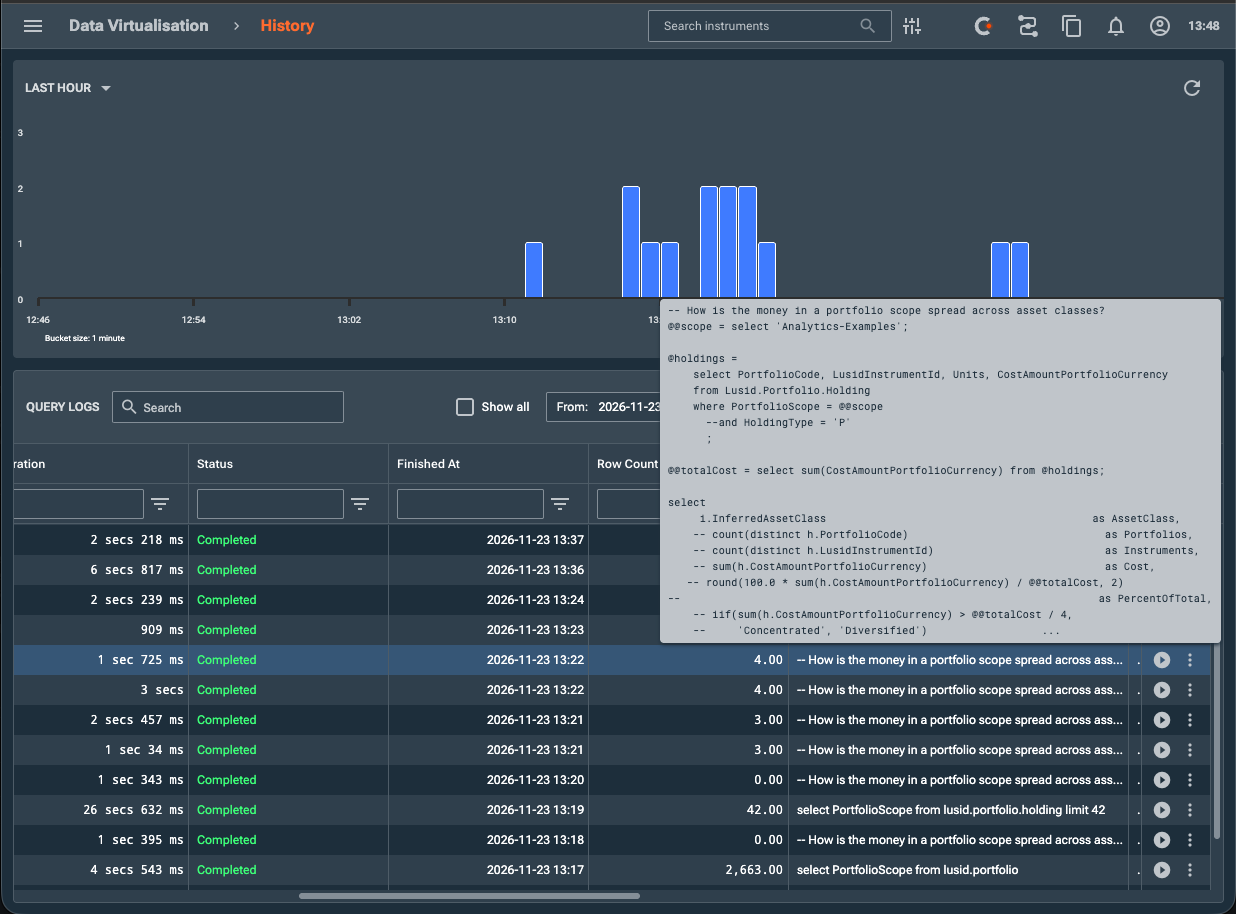
Navigate to Data Virtualisation > History. The page lists the queries run in the last hour, newest first.
Choose the time to look over: Last 30 minutes, Last hour, Last 24 hours or Last week, or set your own From and To. The chart shows how many queries ran over that time.
To narrow the list, type in Search. It matches the text of the query, its name, its status, its details and who ran it, so
Lusid.Portfolio.Txn, a query's name orFailedall work.
Each row shows the query's Status, when it started and how long it took, how many rows it returned, and its Details, such as an error message. You can sort and filter the columns as you would any results grid. Select Refresh to pick up queries that have run since.
Show all adds the queries LUSID runs for you behind the scenes, such as those that load the Catalogue. If your role allows it, it also adds other users' queries.
Method 2: See what a past query returned
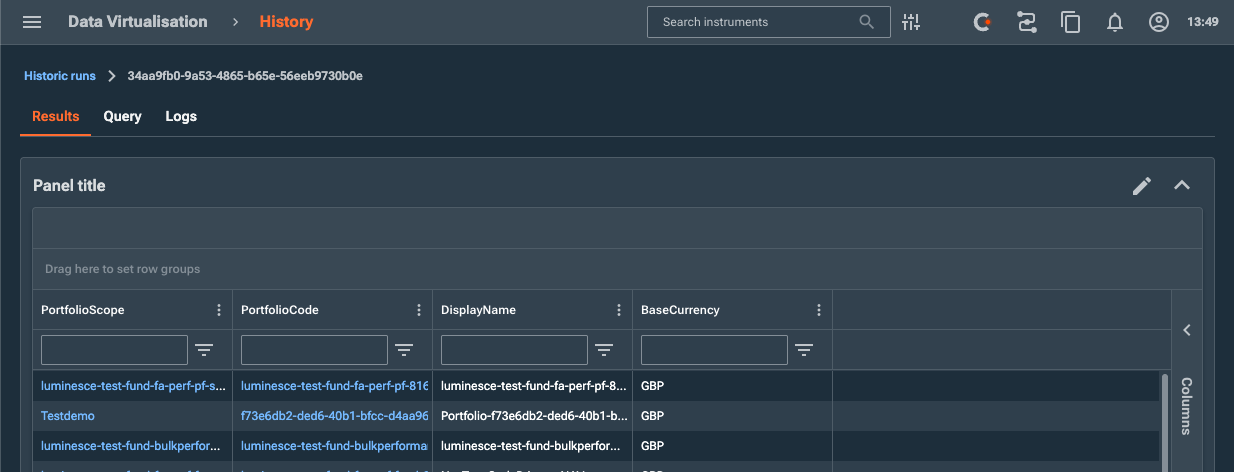
Select a row's Query ID, or its View button. The run opens in a new tab, with three tabs of its own:
Results: the rows the query returned, in a grid you can sort, filter and group.
Query: the SQL exactly as it ran.
Logs: the query's log, with every provider it called and any errors. All times are in UTC.
A completed query opens on Results; any other opens on Logs.
You can also get here from the Query Editor. Select Show Details on the results toolbar to open the run you're looking at, or Run details on a failed query to go straight to its log.
Method 3: Run a past query again
Select Re-run this query on its row.
If the query has parameters, enter their values and confirm. See How do I use parameters in a query?
Follow its progress in the dialog. When it finishes, its results open in a new tab.
While a query is still running, its row offers Stop the query instead. Stopping it removes any results it has so far.
Method 4: Open a past query in the Query Editor
To change a past query before you run it, select Edit query on its row, or right-click the row and select Edit Query. The Query Editor opens with the query in a tab of its own, under its name if it had one.
Troubleshooting
A past query has no results
The Results tab says why:
Message | What it means |
|---|---|
The results for this query have expired and are no longer available. | Results are kept for 30 days. Run the query again to get them back. |
The results for this query are no longer available. | The results have been cleared. Run the query again. |
The results for this type of query are not stored | Only queries run in the background, as the Query Editor runs them, keep their results. Check the Logs tab instead. |
This query failed so there are no results | See the Logs tab for the error. |
This query was cancelled so there are no results | Someone stopped the query before it finished. |
This is a call to a view within a larger query. | The row is one view that a bigger query used. Select Click here to open the query that called it. |
You are not authorized to see the results of this query. | You don't have permission to see this query's results. You can still see its log. |
I can't find a query
Widen the time range: the page starts with the last hour only. If someone else ran the query, you see it only with Show all selected and a role that allows it.
Related articles
How do I find and re-run a past query?, for the same task in LumiCode