The Luminesce Query Editor gives you everything you need to write, run and work with Luminesce SQL in one screen of the LUSID web app: several queries open at once in tabs, a catalogue of every provider you can use, and a results grid you can format, group and total. Knowing where everything is makes the rest of the Query Editor quick to pick up.
To open it, sign in to the LUSID web app and select Data Virtualisation > Query Editor.
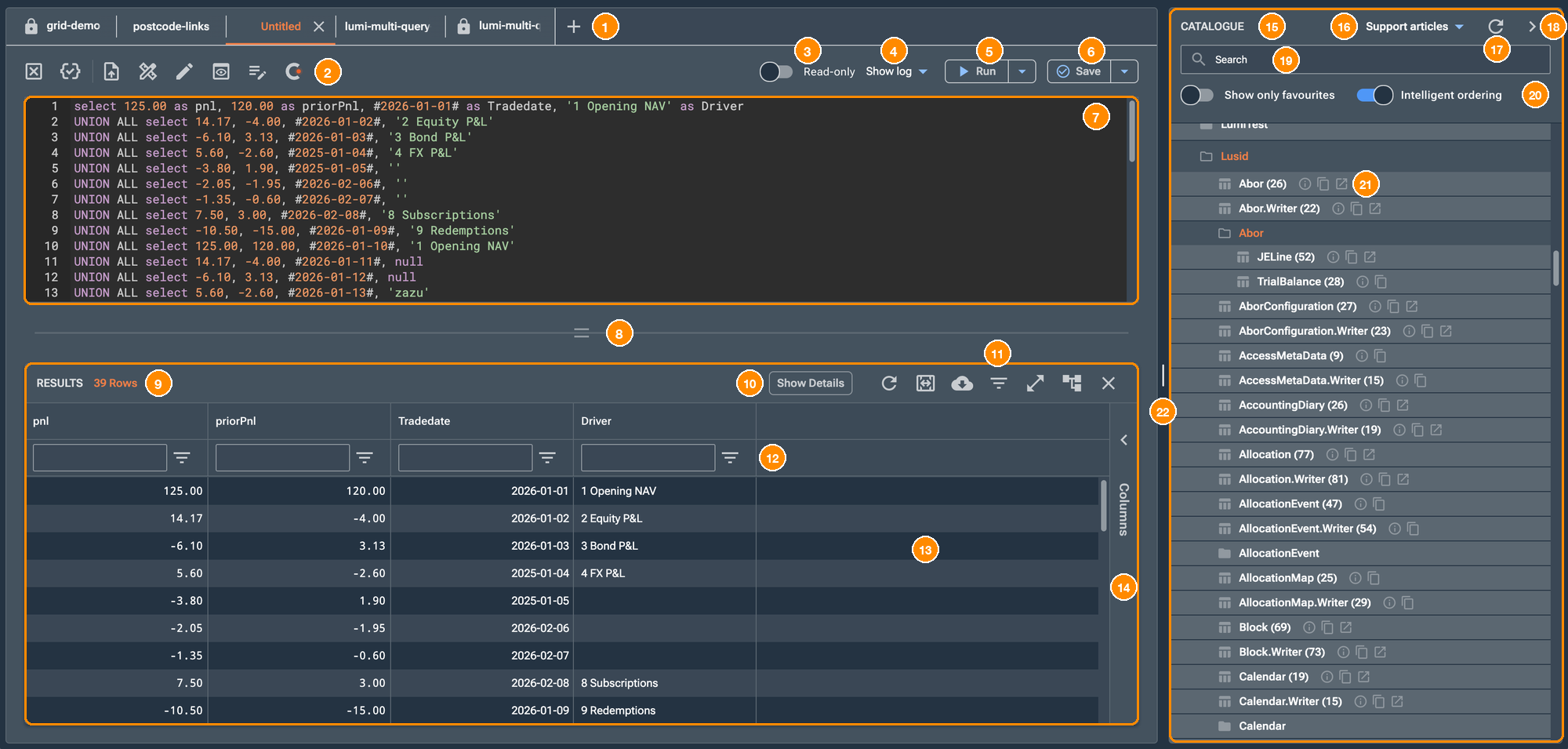
# | What it is |
|---|---|
Query Editor | |
1 | Tabs. Each holds one query. + opens a new tab or a Saved Query. |
2 | Clear, Pretty print, the designers and the Query Editor assistant. |
3 | Read-only: lock the query so it can't be changed by accident. |
4 | What you see while a query runs: Show log, Hide log, or Show log and close on success. |
5 | Run, or press Shift+Enter. The arrow beside it has Schedule query. |
6 | Save. The arrow beside it has Save As. |
7 | The editor, with autocomplete and error underlining. |
8 | Drag to share the space between the editor and the results. |
Results | |
9 | Results, with the number of rows. |
10 | Show Details: this run on the History page. |
11 | Refresh, Auto size all columns, download, Filters, full screen, Show table lineage and Close. |
12 | Filter each column. |
13 | The results grid. Sort, format and group from a column's menu. |
14 | The Columns side bar: show, hide, group and total columns. |
Catalogue | |
15 | Every provider and view you can query. |
16 | Support articles: the Luminesce documentation and example queries. |
17 | Refresh the catalogue. |
18 | Collapse the catalogue. |
19 | Search providers and views. |
20 | Show only favourites, and Intelligent ordering. |
21 | Provider information, Copy table name, and documentation links. |
22 | Drag to resize the catalogue. |
The layout
The screen has three areas:
Query Editor, on the left: your tabs, the toolbar and the editor where you write SQL.
Results, under the editor once a query has run: the results grid for the selected tab.
Catalogue, on the right: every provider and view you have permission to query.
Drag the bar between the editor and the results to give either more room, and drag the edge of the Catalogue panel to make it wider or narrower. To collapse the Catalogue when you need the space, select > at the top of it. The Query Editor remembers these sizes for next time.
Tabs
Each tab holds one query, with its own results, run status and undo history, so you can keep several pieces of work open side by side. Queries in different tabs can run at the same time.
To open a new tab, select + and then New Tab.
To open a Saved Query or a query set in a tab, select + and then Saved Queries. See How do I save, open and share queries?
To close a tab, select the × on it. It appears when more than one tab is open.
You can have up to 10 tabs open. A tab is named after the Saved Query it holds, or Untitled until you save it. Hover over a tab to see where its query is saved.
Your tabs, and what is in them, are kept when you refresh the page or come back later.
The toolbar
The toolbar above the editor holds the tools for writing and running queries. Hover over any icon to see what it does.
Tool | What it does |
|---|---|
Clear | Empties the editor and clears the tab's results. |
Pretty print | Lays out the query neatly. |
File designer | Helps you read a file from Drive and other locations. See How do I read a file with the file designer? |
Query designer | Builds a query by choosing providers, fields and joins. See How do I use the Luminesce query designer? |
Writer designer | Turns the query into one that writes its results to a writer provider. |
View designer | Turns the query into a custom view. |
Inlined properties designer | Writes the SQL that sets up inlined properties for a provider. |
Query Editor assistant | Opens Candela, FINBOURNE's AI agent, beside the editor to help you write or fix a query. It's shown only if Candela is available in your domain. |
On the right of the toolbar:
Read-only locks the query in the tab, so it can't be changed by accident. A lock appears on the tab. A Saved Query you open with Run from the Saved Queries page starts out read-only.
The log menu chooses what you see while a query runs: Show log, Hide log, or Show log and close on success. See How do I run a query and follow its progress?
Run runs the query, or only the part you've highlighted. You can also press Shift+Enter. The arrow beside it has Schedule query.
Save saves the query to Workspaces. The arrow beside it has Save As.
The editor
As you type, the editor suggests providers, fields, functions and keywords, and underlines anything it can't make sense of. See How do I write queries faster?
Beside the editor's toolbar, the run status shows how the tab's last run went: In progress, Succeeded or Failed. While a query runs, Cancel stops it. After a failure, Run details shows what went wrong.
Keyboard shortcuts
Keys | What they do |
|---|---|
Shift+Enter | Runs the query, or only the part you've highlighted. |
Up and Down arrows | Move through the autocomplete suggestions, while the list is open. |
Control+Space | Explicitly opens the autocomplete list |
Enter or Tab | Insert the highlighted autocomplete suggestion. |
Esc | Closes the autocomplete list without inserting anything. |
The editor also supports the usual text-editing keys, such as undo, redo, cut, copy and paste. Each tab keeps its own undo history.
The Catalogue
The Catalogue lists every provider and view you're allowed to query, in folders. Search it by name, mark the providers you use most as favourites, and open any provider to see its fields and parameters, with a description of each. See How do I find providers and fields in the catalogue?
The Support articles menu at the top of the Catalogue links to the Luminesce documentation and to example queries.
Results
When a query finishes, its results appear in a grid under the editor. The grid works on the whole result, however large: you can sort, filter, group and total it, format its columns, and follow links in its cells. See How do I format results? and How do I filter, group and total results?
When you run a query set, each query that has a result gets a tab of its own in the results. See How do I run several queries together as a query set?
The rest of Luminesce in the web app
Alongside the Query Editor, the Data Virtualisation menu has:
Saved Queries: queries and query sets saved in your workspaces.
History: every query you've run, with its results and log.
Catalogue: the same catalogue as in the Query Editor, on a page of its own.
Dependencies: what a provider or view depends on, as a diagram.
Settings: your preferences for the Query Editor, such as autocomplete and how results are shown. See Query Editor settings reference.
Related articles
Understanding the LumiCode workspace, for the same tasks from a terminal