Once your results look right, you'll want them somewhere else: in a spreadsheet, in an email, or in Drive for your team. The Luminesce Query Editor can export every row of a result, however large, not only the rows on your screen. It can keep the grid's sorting, filters, number formats, groups, totals and colours in the file, so an Excel workbook looks just like the grid. For a quick paste, copy the cells instead.
Which method to use
You want | Use |
|---|---|
A few cells, to paste into a spreadsheet or a message | |
The whole result as a file on your computer | |
The whole result as a file in Drive, to share or keep |
Prerequisites
Access to the Luminesce Query Editor in the LUSID web app, under Data Virtualisation > Query Editor.
A query that has run, with its results showing under the editor.
To save to Drive, permission to add files to the Drive folder you choose.
Methods
Method 1: Copy cells
Select a cell, or drag across several to select a range.
Press Ctrl+C, or right-click and choose one of these:
Copy copies the cells as the grid shows them, with their number and date formats.
Copy with headers does the same, with the column headings as the first line.
Copy raw value, on a number column only, copies the number without formatting: every decimal place, no thousands separators, and a minus sign for negative numbers.
The cells are copied as tab-separated text, so they paste straight into the cells of a spreadsheet.
Method 2: Download the results as a file
Select the export button (a cloud with a downward arrow) in the toolbar above the grid. A panel opens under it.
Under File type, choose Csv, Excel, Parquet, Pipe, Sqlite or Xml. Csv is chosen to start with.
Under Include, tick what you want the file to keep from the grid. Only the choices the file type can keep are listed, and each is ticked to start with if the file type keeps it by default. Hover over a choice to see what it does. See Choosing what the file keeps.
Check the File name. It starts as the query's name, or
resultsfor a query you haven't saved. The extension is added for you. A name can't contain\ / : * ? " < > |.Leave Download file ticked, and select Export.
Luminesce builds the file from every row of the result and your browser downloads it. A large result can take a little while.
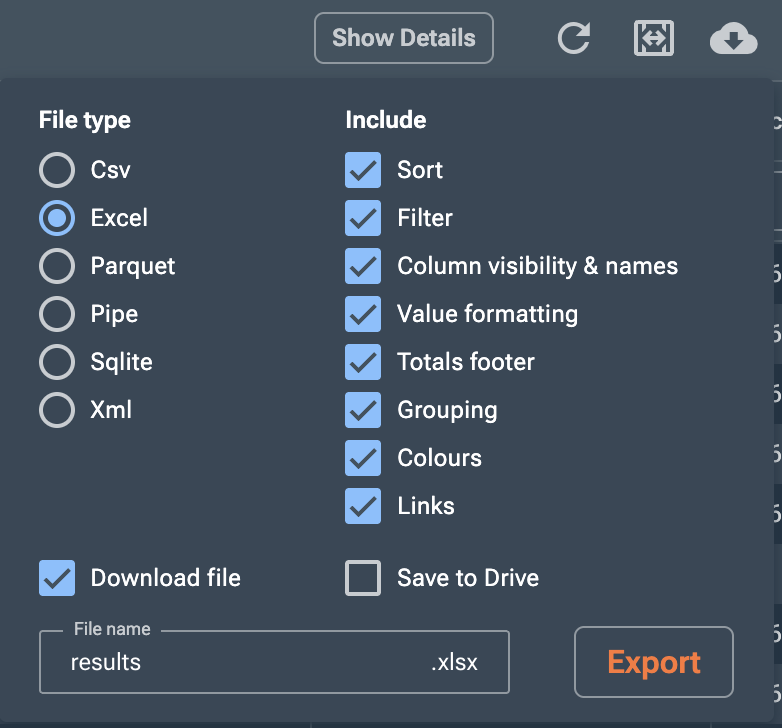
# | Control | What it does |
|---|---|---|
1 | Export button | Opens and closes the export panel. |
2 | File type | The kind of file to make. |
3 | Include | What the file keeps of the grid's sorting, filters and formatting. |
4 | Download file | Downloads the file to your computer. |
5 | Save to Drive | Saves the file to Drive as well, or instead. |
6 | Choose folder | Picks the Drive folder to save to. The folder you picked is shown under it. |
7 | Overwrite an existing file | Replaces a file with the same name in that folder. |
8 | File name | The name to give the file, without its extension. |
9 | Export | Makes the file. |
Method 3: Save the results to Drive
Open the export panel and choose the file type, what to include and the file name, as in Method 2.
Tick Save to Drive, then select Choose folder.
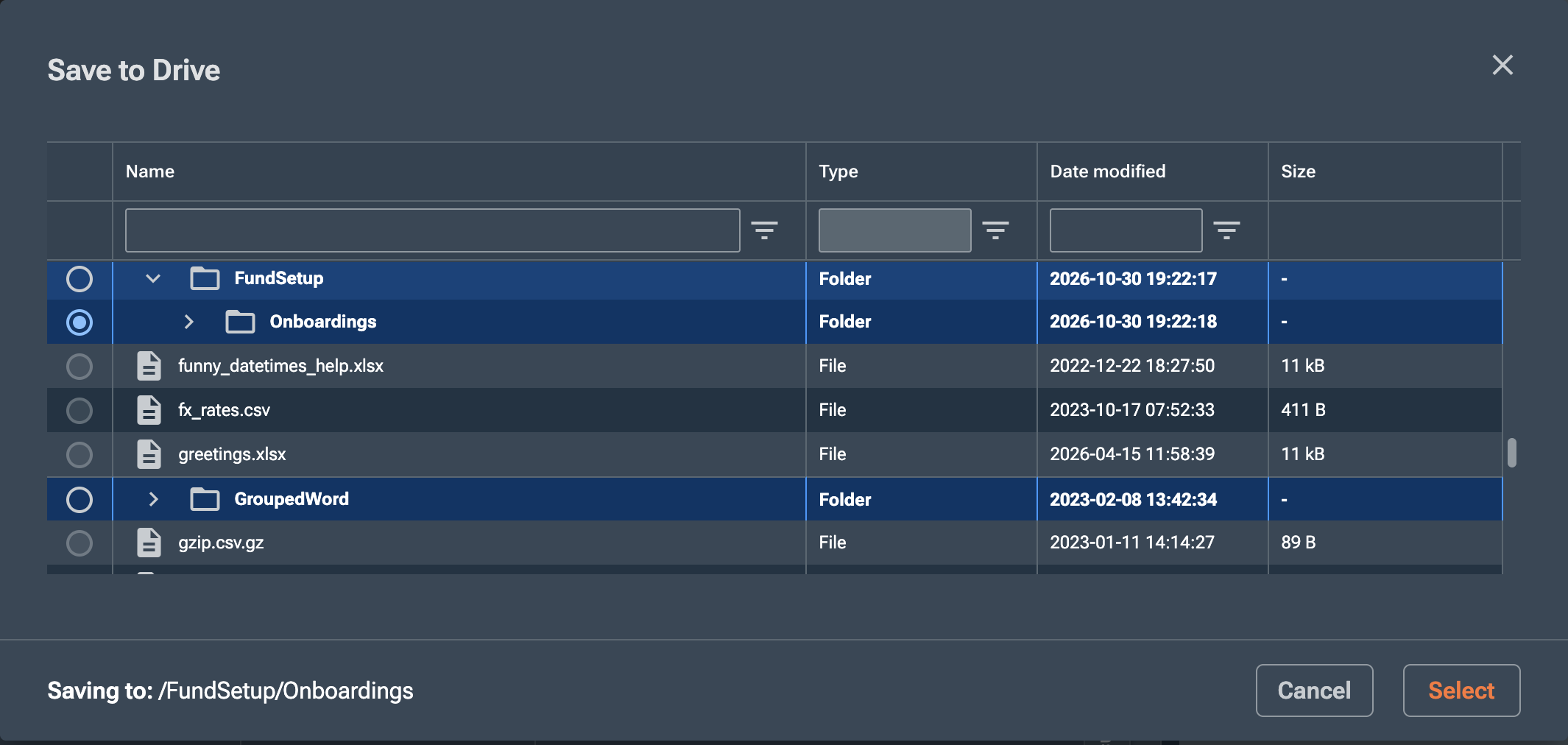
In the Save to Drive dialog, open folders with the arrow beside them and select the folder to save to, then select Select. Saving to: beside the buttons shows where the file will go. If you don't select a folder, it goes in the top level of Drive.
Leave Overwrite an existing file ticked to replace a file of the same name, or untick it to keep that file.
To save to Drive without downloading as well, untick Download file.
Select Export.
A message confirms where the file was saved. To open the file later, select Data Management > Drive. See How do I upload and manage files in Drive?
To save results to Drive every time a query runs, for example on a schedule, write them from the query itself with the Drive.SaveAs provider.
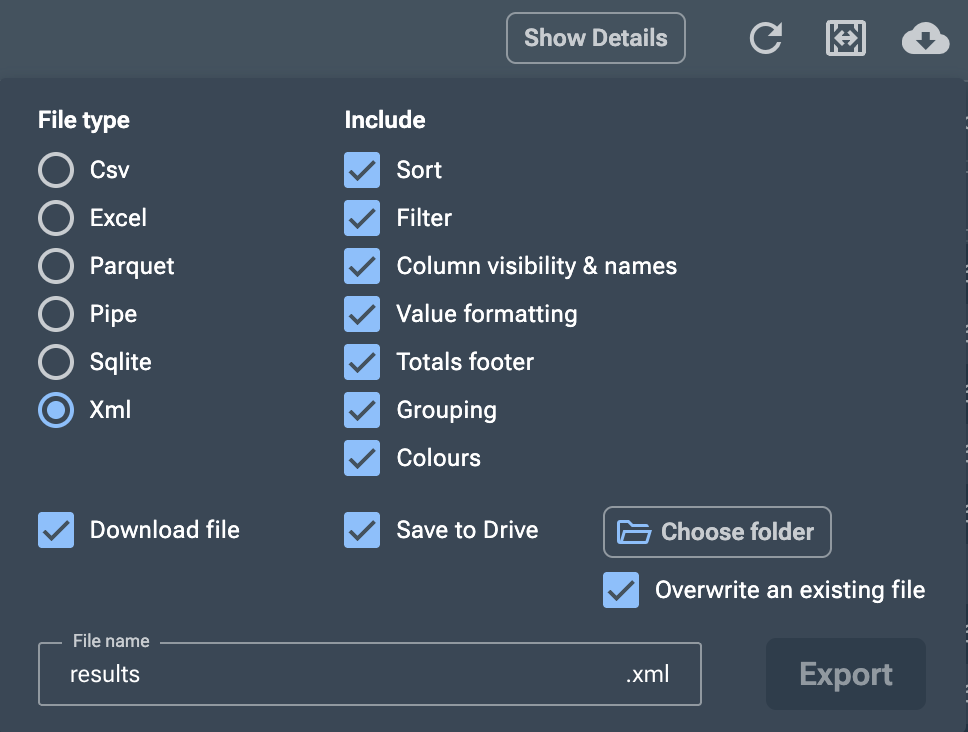
Choosing what the file keeps
The file can keep as much or as little of the grid as you like. Untick everything to export the result exactly as the query returned it.
Include | What the file keeps | File types | Ticked to start with for |
|---|---|---|---|
Sort | The rows in the order the grid sorts them. | All | All |
Filter | Only the rows the grid's filters keep. | All | All |
Column visibility & names | Leaves out the columns you've hidden, and heads the columns you've renamed with their new names. | All | Csv, Excel, Pipe, Xml |
Value formatting | Numbers and dates written as the grid shows them, in your locale and time zone, and text added by conditional formatting. | Csv, Excel, Pipe, Sqlite, Xml | Csv, Excel, Pipe, Xml |
Totals footer | A last row with each column's total, worked out over every row exported. | Csv, Excel, Pipe, Xml | Excel, Xml |
Grouping | The rows grouped as the grid groups them, with each group's totals. | Excel, Xml | Excel, Xml |
Colours | Column colours, and the colours conditional formatting gives cells and rows. | Excel, Xml | Excel, Xml |
Links | Values that link to other places as clickable links. | Excel | Excel |
The choices apply to the grid as it is when you export, including formatting you haven't saved yet. To set up the formatting first, see How do I format results? and How do I filter, group and total results?
Which file type to choose
Excel for a report people will read. Each cell keeps its value, shown with an Excel number format, so it still adds up in Excel. Grouped, the workbook has a Group column first, then a bold row heading each group, with its rows outlined under it so you can open and close them. Excel can outline at most 7 levels, so group by 7 columns or fewer. In Excel, a value links where it does in the grid, and each of its other links is a clickable column beside it.
Csv or Pipe to pass the data to another system or spreadsheet. Pipe separates values with
|, for data whose text contains commas. Neither can be grouped or coloured.Xml for another system that needs the grid's groups and colours as well as the values. Each cell has its value as it is, and its text as the grid shows it.
Parquet or Sqlite to load the data into analytics tools or a database, with each column keeping its type.
Troubleshooting
Export is greyed out
Check the File name: it can't be empty or contain \ / : * ? " < > |, and a message under it says what's wrong. Also check that Download file or Save to Drive is ticked. With Save to Drive ticked, you need to choose a folder first.
Saving to Drive failed
The message says why. If a file of that name is already in the folder and Overwrite an existing file was unticked, export again with a different name, or tick it to replace the file. If you can't add files to the folder, choose another one or ask your LUSID administrator.
The file doesn't look like the grid
Open the export panel again and check what's ticked under Include, and that the file type can keep it. For example, only Excel and Xml keep groups and colours. A group by part of a date, such as Year-Month, uses the date in UTC, so a row near midnight can fall in a different group than it does in the grid.
The right-click menu's Export gives fewer rows
Export on the right-click menu, with CSV Export and Excel Export (.xlsx), saves only the rows the grid has loaded so far. Use the export button above the grid to export every row.
There are no Include choices
The results preview in the designers offers each file type, but exports the result as it is, without the grid's formatting. Run the query in the editor to export it with its formatting.