A query often returns more rows than you can take in at once. In the Luminesce Query Editor's results grid you can narrow them down, group them into a tree with a total for each group, and add totals under the whole result. All of this is worked out by Luminesce over every row, however large the result, not only the rows on your screen.
Prerequisites
Access to the Luminesce Query Editor in the LUSID web app, under Data Virtualisation > Query Editor.
A query that has run, with its results showing under the editor.
Methods
Method 1: Filter and sort the rows
Under each column heading is a filter box.
Type in the box to keep only the rows that match.
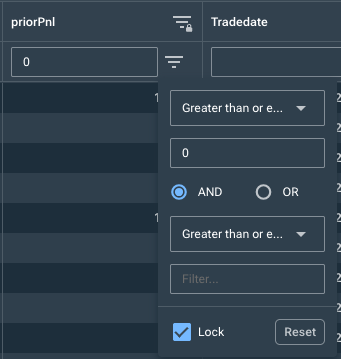
For more choices, select the filter icon beside the box. You can choose how to compare, for example Not contains, Starts with, Greater than or equals or In range, depending on the column's type.
Filters apply to every row of the result, and the row count beside Results changes to match. To sort, select a column's heading.
To see every filter at once, select Filters in the toolbar above the grid. A number on the icon shows how many filters are in use. Select Clear all to remove them.
To keep a filter when you clear the others, open its filter options and tick Lock. Reset removes that one filter.
Method 2: Group the rows
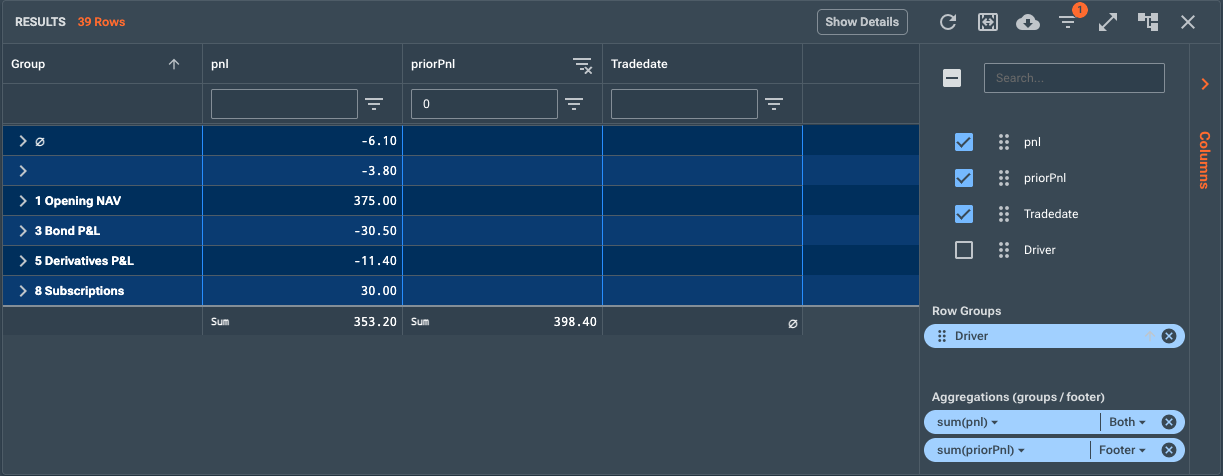
Grouping turns the result into a tree: one row per group, which you can open to see the rows inside it.
Open the Columns side bar on the right of the grid.
Drag the column you want to group by into Row Groups. Drag in more columns to nest groups inside groups.
Select > beside a group to open it, and select it again to close it.
The grouped values appear in a Group column on the left. To take the column's own copy out of the grid, untick it in the column list. To stop grouping by a column, select the × on its pill in Row Groups.
Rows with no value form a group of their own. To show these empty values as ∅, which distinguishes them from '' values, turn on Show nulls as ∅ on the Data Virtualisation > Settings page.
Grouping by date
You can group a date column by part of the date, for example to see one group per month:
Open the date column's menu and select Group by Date Part.
Choose Year, Year-Month, Week or Hour, or Full date to group by the whole date.
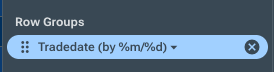
To group by your own pattern, select Custom date format and type a strftime format, for example %m/%d. Hover over the information icon beside it for the codes you can use.
Method 3: Add totals
Totals show a figure for each group, a figure for the whole result in a footer under the grid, or both.
In the Columns side bar, drag the column you want to total into Aggregations (groups / footer).
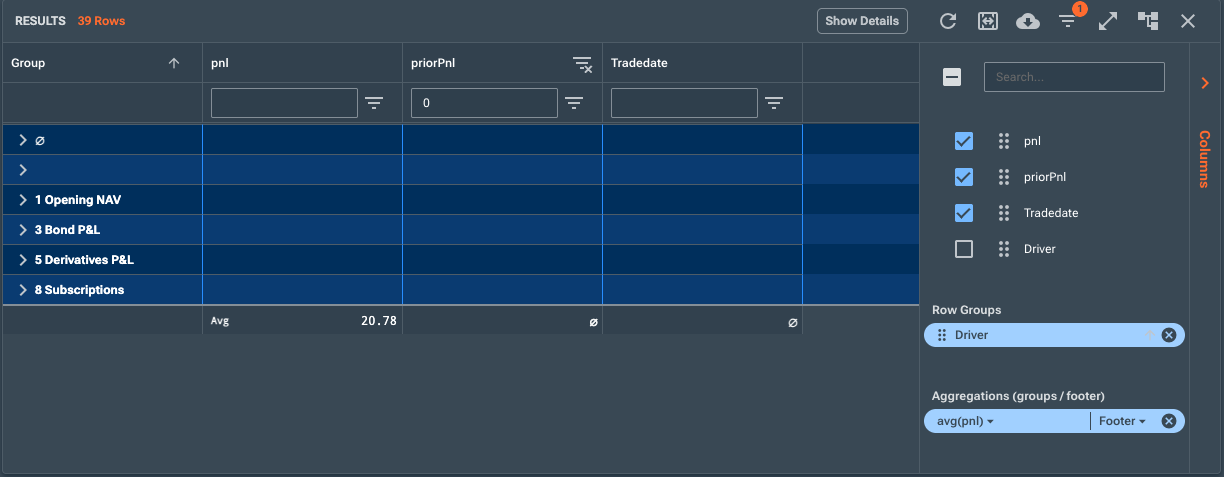
On its pill, select the function, for example avg(pnl), and choose Sum, Average, Minimum, Maximum, Median, Count, Count (distinct), Same value or None.
Select where the figure is shown: Group rows, Footer, or Group rows and footer. The pill shows your choice as Groups, Footer or Both.
Without any row groups, every total goes in the footer. The footer labels each figure with its function, for example Avg, and is worked out over every row the filters leave. Hover over a footer figure to see which function it uses.
Method 4: Sum a selection of cells
For a quick figure without changing the grid, select a range of cells by dragging across them. The bar under the grid shows their average, count, minimum, maximum and sum.
Method 5: Save it with the query
Filters, groupings, sorting and totals stay with the tab, even if you refresh the page. To keep them with the query, so they're there for anyone who opens it, save the query with Save formattings ticked. See How do I format results?
Troubleshooting
A group doesn't list all its rows
Large groups are fetched a page at a time as you scroll. The figures for each group are always worked out over all of its rows.
A total doesn't appear on the group rows
Check its pill in Aggregations (groups / footer). A total placed on Footer shows only under the grid. Choose Group rows and footer to show it in both.
Related articles
How do I explore, group and chart results?, for the same tasks in LumiCode