You can override (that is, replace, adjust or suppress) the ‘virtual’ transactions automatically generated by LUSID in response to instrument events.
Note: Most events, whether instrument lifecycle or corporate action, generate at least one transaction. Some events generate several, providing you have implemented all the required transaction types.
You might want to do this if the custodian paid a different amount, the payment arrived in two parts, or one holding shouldn't be affected at all.
Overriding transaction(s) generated by a particular event
You can perform the following operations:
Operation | What LUSID does | Typical use | Available in |
|---|---|---|---|
Override (that is, entirely replace) | Cancels the event-generated transaction and books one or more replacement transactions that you define. | The payment differs from LUSID's figure, or one payment should be booked as two. | Web app and API |
Suppress | Cancels the event-generated transaction and books nothing in its place. | The event shouldn't affect this holding at all. | Web app and API |
Adjust | Keeps the event-generated transaction but changes particular fields, such as units, price, total consideration, settlement date or settlement currency. | A small correction where you want to keep LUSID's transaction rather than replace it. | API only |
Unaffected (the default) | Leaves the event-generated transaction as-is. | LUSID's calculation is correct. | Web app and API |
For example, say a bond coupon event generates three transactions, one for each of three sub-holdings. If you override the first and suppress the second, LUSID books your replacement for the first, cancels the second, and generates the third as normal.
LUSID stores your choices per instrument event and per portfolio as an override record. Deleting the record undoes everything, and every transaction for that event is generated as before.
Examining transaction history for overrides
When you replace or suppress an event-generated transaction, LUSID gives the original a status of Cancelled. A cancelled transaction has no effect on holdings, cash or P&L.
A replacement is an output transaction, just like the event-generated transaction it replaces. To examine these transactions:
LUSID web app: Navigate to Portfolio Management > Transactions and set Transaction status to All transactions and Dashboard Type to Output:

LUSID API: Call the BuildTransactions API and set
showCancelledTransactionstotrue.
Note: Event transactions do not appear in Input mode on this dashboard, nor when using the
GetTransactionsAPI, because neither are ever input transactions.
Consider the following example, of a Bond instrument held in three sub-holdings, A, B and C. LUSID emits a single BondCouponEvent on 15 July that generates a BondCoupon output transaction in each. We then perform the following operations:
A (in yellow): Replace the event-generated transaction. The original (total consideration of 2500) has a status of Cancelled. The replacement (total consideration of 2400) has a status of Active.
B (in red). Suppress the event-generated transaction. It has a status of Cancelled.
C (in green): Do nothing. The event-generated transaction is unaffected, and retains a status of Active.
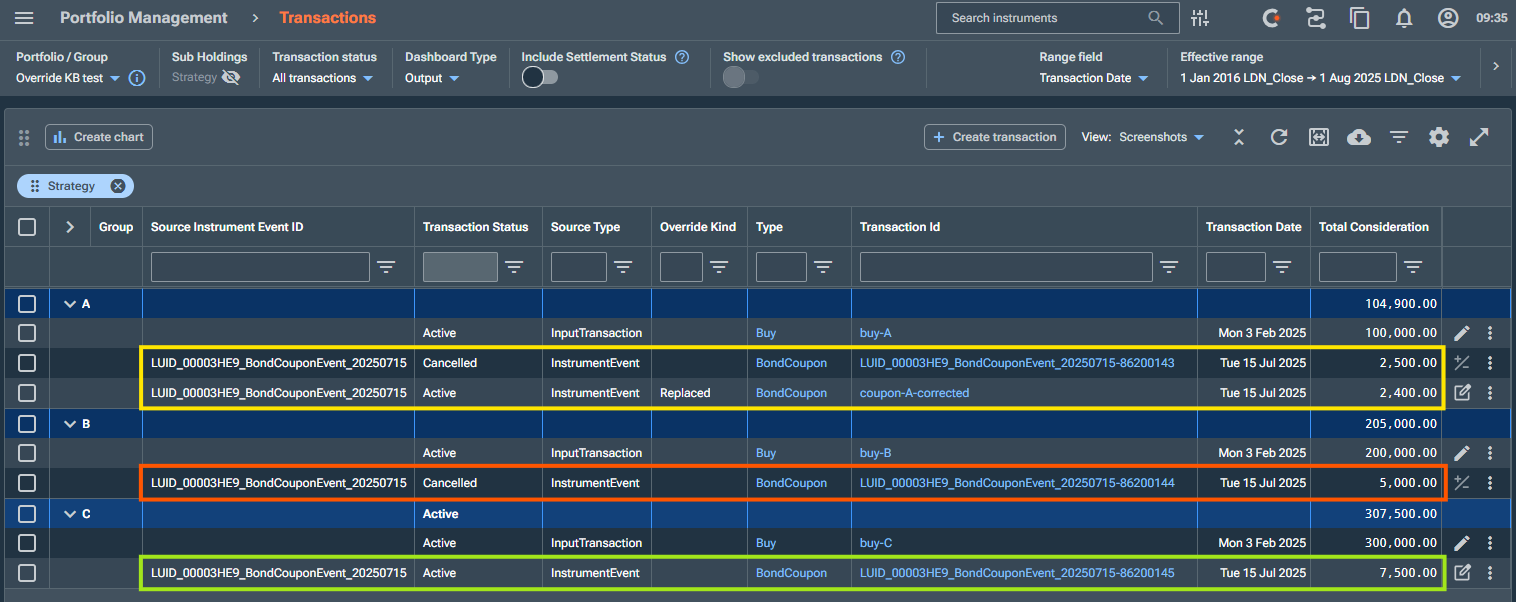
The following fields and system properties are available to examine on output transactions to understand change:
Field or property | Value |
|---|---|
| This is always |
| The ID of the instrument event. The same for every transaction the event generates, including replacements and cancelled originals. |
| The ID of the |
|
|
|
|
| On an adjusted transaction, the values the event originally generated, before your adjustment. |
| On an adjusted transaction, the fields and property keys you changed. |
Performing an override operation
Navigate to Portfolio Management > Transactions and switch to Output mode.
Right-click a transaction generated by an instrument event and click the Override button:
 .
The Override dialog lists every transaction the event generated in this portfolio, grouped by sub-holding. A holding with no value for a sub-holding key is grouped under <NOT CLASSIFIED>
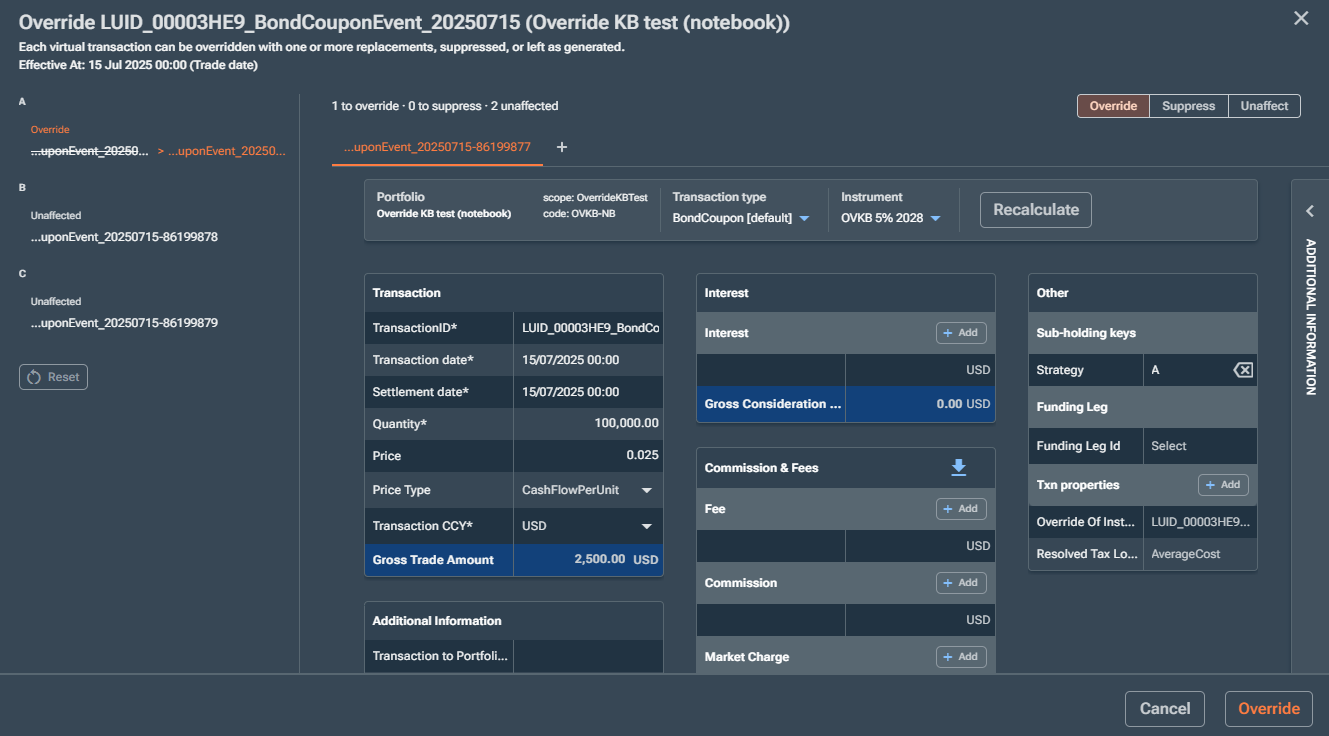
For each transaction, choose Override, Suppress or leave it Unaffected. A line above the rows counts your choices, for example 1 to override · 0 to suppress · 2 unaffected.
For each transaction you override, correct the replacement the dialog has pre-filled. It starts as a copy of the original, with the same transaction ID. To split one payment into two, select + Add replacement. Every replacement you add is booked as well, so don’t add one just to correct an amount. Rules for replacement transactions.
Select Override. If LUSID returns a warning, such as a sub-holding key mismatch, the dialog shows it.
To change the override later, right-click any transaction the event generated and select Override again. The dialog reopens with each row's saved state. Check every row before you save: the row you clicked may open as Override [see question 8]. To undo everything, select Revert override.
Before you start, you need:
The
instrumentEventIdof the instrument event whose transaction(s) you want to override. To find this out, examine thesourceInstrumentEventIdfield on one of its output transactions (it is the same for all), or call the QueryApplicableInstrumentEvents API for the portfolio.The
transactionIdof each event-generated transaction you want to override, whether this is to replace, suppress or adjust. To find this out, examine the output transaction (it will be different for each one), or call the GetVirtualTransactionOverride API (which, before you override, lists applicable transactions aslive).
To perform an operation, call the UpsertVirtualTransactionOverride API, passing the portfolio scope and code in the URL and the instrumentEventId as a query parameter. In the request body, key each entry by the ID of the event-generated transaction it targets:
overrides: a map fromtransactionIdto a list of one or more replacement transactions.suppressions: a list oftransactionIdto suppress.adjustments: a map fromtransactionIdto the fields to change.
Note a particular transactionId can appear in only one of the three.
For example, to replace the coupon on one sub-holding with a corrected amount, suppress the coupon on another, and adjust the total consideration of a third:
{
  "overrides": {
    "LUID_00003HE9_BondCouponEvent_20250715-86200143": [
      {
        "transactionId": "coupon-A-corrected",
        "type": "BondCoupon",
        "instrumentIdentifiers": { "Instrument/default/ClientInternal": "BOND-001" },
        "tradeDate": "2025-07-15T00:00:00Z",
        "settlementDate": "2025-07-15T00:00:00Z",
        "units": 0,
        "tradePrice": { "price": 0, "type": "Price" },
        "totalConsideration": { "amount": 2400.00, "currency": "USD" },
        "properties": {
          "Transaction/MyScope/Strategy": {
            "key": "Transaction/MyScope/Strategy",
            "value": { "labelValue": "A" }
          }
        }
      }
    ]
  },
  "suppressions": [ "LUID_00003HE9_BondCouponEvent_20250715-86200144" ],
  "adjustments": {
    "LUID_00003HE9_BondCouponEvent_20250715-86200145": { "totalConsideration": 7400.00 }
  }
}Note: A replacement doesn't inherit the original's SHK, so include the appropriate
Transactionproperty as per the example above, or the replacement books to a different sub-holding. LUSID warns you withSubHoldingKeyMismatchin the response.
Each call replaces the whole override record for that event. If you leave out an entry you saved before, LUSID removes it and that transaction reverts to unaffected. To change one entry, send all the entries you want to keep.
To undo everything for the event, call the DeleteVirtualTransactionOverride API with the instrumentEventId.
Checking the status of an override record
The status of an override record may change over time. For example, LUSID might successfully apply your changes at the time, but subsequently you might cancel the buy that created a holding, or a later corporate action might restructure it.
Each entry in the record (a replacement, suppression or adjustment) has its own status that is constantly updated:
Entry status | Meaning |
|---|---|
| The entry's target transaction still exists, and LUSID applied the entry. |
| The event no longer generates the target transaction. LUSID keeps the entry, including your replacement details, so you can re-point or remove it. An orphaned replacement appears in output transactions as |
| An entry in a derived portfolio replaced it. |
The record as a whole has two status flags, overrideMatchStatus and overrideApplicationStatus, which appear as badges at the top of the Override dialog in the web app:
Record status | Values |
|---|---|
Match ( |
|
Applied ( |
|
To resolve an orphaned entry in the web app, open the Override dialog. Orphaned entries are listed under an ORPHANED heading. Select Move to… to re-point the entry to one of the event's current transactions, or Remove entry to delete it, then select Override.
Finding every record that needs attention
In the web app, navigate to Portfolio Management > Override Attempts to see every override record in a portfolio.
By default the dashboard shows only records that are Partial or Orphaned, which is your worklist; you can filter by either status. Expand a record to see each entry's status, or select it to open the Override dialog and resolve it there.
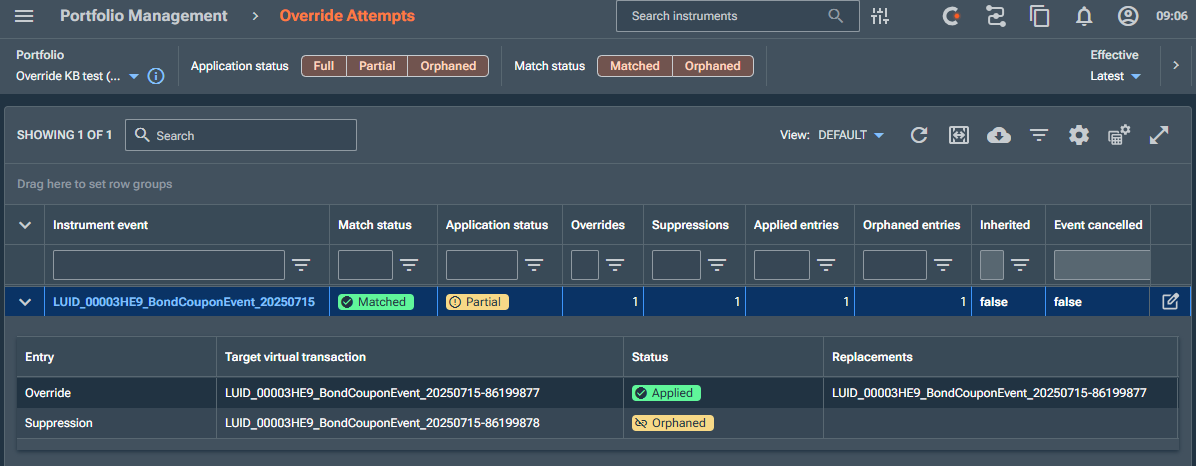
In the API, call ListVirtualTransactionOverrides with overrideApplicationStatus set to Partial and Orphaned.
Derived portfolios
An override record in a parent portfolio also applies to every derived portfolio. If a derived portfolio has its own entry for the same holding, that entry takes precedence and the parent's entry is shown as Superseded. If you delete the derived portfolio's entry, the parent's entry applies again.
To change an inherited entry, edit the record on the portfolio that holds it. In the web app, inherited rows are read-only. In the API, each record's sourcePortfolioId identifies the portfolio that holds it.
Rules for replacement transactions
LUSID rejects a request with HTTP 400 if two replacements share a transaction ID, or if the same transaction appears in more than one of overrides, suppressions and adjustments.
LUSID accepts the override call in each of the cases below and then reports the outcome as a diagnostic on the event, which you can examine in the transactionDiagnostics field in a reponse to a call to the QueryApplicableInstrumentEvents API.
The transaction ID mustn't belong to another transaction. A replacement can keep the ID of the transaction it replaces. If it uses the ID of any other transaction in the portfolio, such as a buy, LUSID doesn't book it, and the original stays cancelled with nothing in its place. The entry still shows as
Applied.The replacement mustn't be dated before the original. A replacement with an earlier transaction date is booked as
Cancelled, has no effect, and appears only when you ask for cancelled transactions. Its entry shows asOrphaned.Deposit and loan interest payments can't change currency. On a
FlexibleDepositorFlexibleLoaninterest payment, LUSID doesn't apply a replacement in a different currency. The original stays active and the entry shows asSuperseded. You can change the amount of these payments but not their currency.