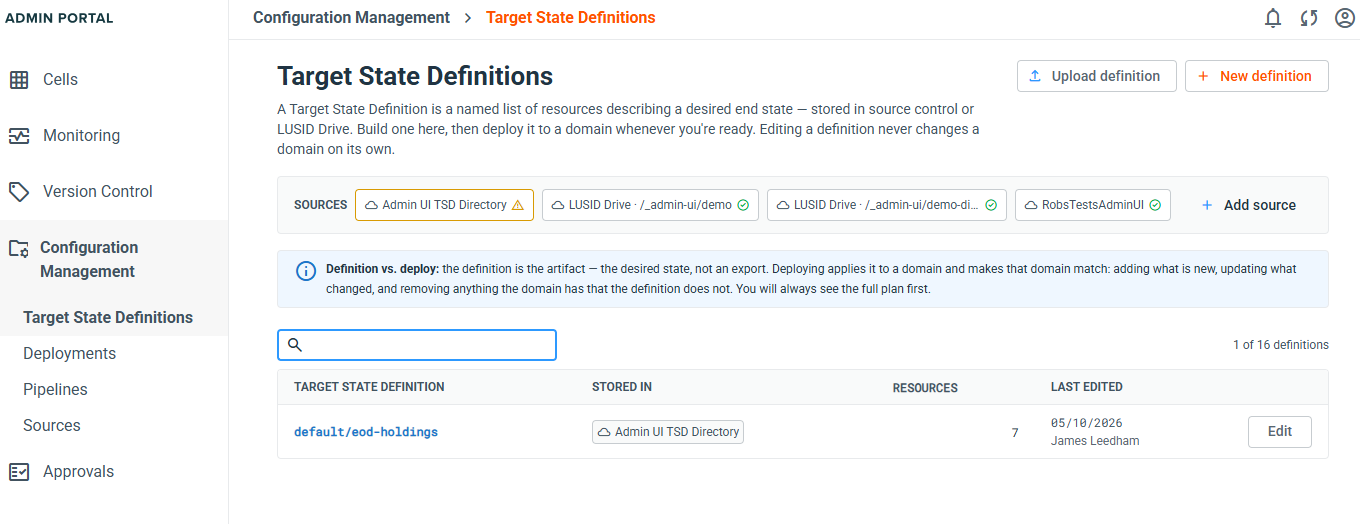
A target state definition (or just definition) is a named list of configuration resources you’d like a domain to match: the data types, property types, transaction types, recipes, workflows and so on that drive the LUSID platform.
You build a definition once, store it in a registered source so it is versioned, and deploy it to as many domains as you like. Editing a definition never changes a domain on its own.
Note: You can pick resources by hand (as described in this article) or copy all from one domain to another.
Prerequisites
At least one registered source. See how to register a source.
The entitlement to create and save definitions. If you can see Target State Definitions under Configuration Management but the New definition button is missing, you have read-only access.
To pull resources from a domain, access to the cell that owns it.
Method
Step 1: Create the definition
Navigate to Configuration Management > Target State Definitions and select New definition.
Under Identifier, enter a Scope and a Code, for example
defaultandeod-holdings. Together these become the deployment name that is managed in every domain you deploy to. Letters, numbers, dashes and underscores only.Under Where is it stored?, select the source that will hold the definition. No source is preselected, even if you have only one.
Check the File path in this source. Admin Portal suggests
<source folder>/<code>.json. You can change it, but the path must end in.json.Select Create & add resources. The definition is created as an empty file in the source.
If a definition with the same scope and code already exists, Admin Portal tells you where it is stored and asks you to choose a different code.
Step 2: Add configuration resources from a domain
You can add configuration resources individually by hand or copy them all from one domain to another. To add individually:
Select Add resources from a domain (or Add resources in the header).
In the Add resources from a domain dialog, choose a cell, then a domain within it, then select Continue. Reading a domain never changes it.
On the Select resources page, select Choose resource types and tick the types you want to browse. A domain typically holds far more resources than are worth listing at once, so nothing is listed until you choose. If the definition already holds resources, a shortcut offers Show only the N types this definition already uses.
Tick the configuration resources you want. Use the search box to narrow the list. Select all N ticks every row currently shown. Resources the definition already holds are tinted, and a chip beside the checkbox shows how it holds them. In definition marks a managed resource, which appears ticked and greyed out. Reference marks one the definition holds only as a reference. You can still select a reference (see below).
Once anything listed is already in the definition, a Show filter appears above the list. Choose All, Not in definition, References or Managed. Each option shows how many resources it would leave.
For each ticked row, the Behaviour column lets you choose Resource or Reference:
Resource: the definition manages it. A deployment creates, updates and removes it to match.
Reference: it must already exist in the target domain. The definition uses it but never changes it.
If the definition holds a resource only as a reference, you can have it manage the resource instead. Tick the row marked Reference and keep Resource in the Behaviour column. When you add it, the managed resource replaces the reference under the same identifier, so anything that depends on it still points at it. Select all skips references, so tick each one yourself. Some types have no managed form and can only ever be references.
A reference already exists in the target domain. Set the new resource's write behaviour to Adopt before you deploy, or the deployment fails to create it.
Select Add N to definition.
Some resources belong to another resource, for example the optional properties of an integration instance. If anything you selected has resources like this that the definition does not hold, the Resources that belong to your selection dialog opens first. It groups them under the resource each one belongs to, and every one is ticked. Untick any you don't want, or use Select all and Select none. Then select Continue with N resources, or Continue without them if you untick everything. Back to selection adds nothing. Each resource you keep is read in full, and anything it depends on is offered in the next dialog along with the rest.
If your selection depends on resources the definition does not hold, the Dependencies found dialog lists them. Each dependency defaults to Reference, the safe choice because it changes nothing in the target. Switch one to Resource if you want the definition to manage it too. Select Add selection + N dependencies to continue, or Back to selection to add nothing.
A dependency you switch to Resource is held in full, so whatever it depends on must be in the definition too. The dialog opens again for those, starting "The dependencies you brought in as resources depend on…", and repeats until nothing is left unmet. Everything you chose is added together at the end. Back to selection at any level adds nothing at all.
You return to the builder with the new resources in place. Each added resource records the domain it was pulled from in the Pulled from column.
Step 3: Optionally edit values
You can change the values a definition holds without touching any domain. Edits apply to the definition only.
To edit one resource:
In the builder, select the pencil icon (Edit values) at the end of the row.
Change any field. Simple values edit as text. Structured values edit as JSON, and Admin Portal refuses to save while any JSON is invalid.
Select Save changes.
To change one field across many resources, for example to move everything from one scope to another:
Optionally tick the resources you want to change. Then select Transform values in the toolbar, or Edit values of N selected… in the selection bar.
Under Apply to, choose All N shown or Only the N selected.
Choose the Field, then under Where the value is choose an existing value or any value, and enter the new value under Set it to.
Select Apply to N resources.
Changed cells are highlighted, and the header shows N with edited values. The Unsaved changes chip appears until you save.
Step 4: Set write behaviour
Write behaviour decides what a deployment does when a resource is already in the domain, and what happens to it when you take it out of the definition. You can set it on one resource, on a selection, or as a default for the whole definition.
One resource: select the value in its Write behaviour column.
Several resources: tick them and select Set write behaviour (N) in the selection bar.
Whole definition: select Write behaviour: ... in the toolbar. This default is added to every resource and can only add protections. A resource that chooses less still gets the default.
Choose one of five presets:
Preset | What a deployment does |
|---|---|
Default | Create it; fail if it already exists. Keep it updated. Delete it when removed. |
Adopt | Create or adopt if it already exists. Keep it updated. Delete it when removed. |
Override | Create or adopt. Keep it updated. On removal, delete only what this deployment created. |
Provision | Create it, then hand it off. Never overwrite changes made in the domain. |
One-shot | Create it, then never touch or delete it. |
Under Advanced you can combine the two choices directly: what to do When it already exists in the domain and When it is removed from this definition.
Resources you add from a domain start with the Default write behaviour. A deployment creates them, and fails on any that already exist in the target domain, including the domain you read them from. To take over resources that already exist, choose Adopt on the resource or as the default for the whole definition. References have no write behaviour, because the definition never creates, updates or deletes them.
Three points are worth knowing before you rely on write behaviour:
It keys off the deployment's own record of what it has deployed before, not off what happens to be in the domain.
Provision and One-shot do not stop the first create. A resource the deployment has never created is still created.
Delete protection is read from the last deployment, so a change applies from the next deployment onwards. Protecting a resource and then removing it takes two deployments.
Select Apply. The header shows N with changed write behaviour until you save.
Step 5: Optionally remove resources
If you want to remove resources you added in error:
One resource: select the bin icon (Remove from definition) at the end of its row and confirm with Remove. The resource stays in every domain it already exists in until a deployment applies the change. A reference cannot be removed here, because the definition uses it but never changes it.
Every resource: select Remove all resources in the header and confirm with Remove all. This empties the definition, references included.
Nothing is saved until you select Save changes.
Step 6: Save or discard
Save changes writes the definition straight back to its source, at the path you chose when creating it. For a Git source this is a commit to the configured branch with the message
Update target state definition <scope>/<code> via Admin Portal. There is no commit message to type and no branch to choose. On success the button reads Saved.Discard changes returns the definition to the last saved version. The confirmation names what will be thrown away, such as
2 edited resources, 1 added resource and 3 removed resources. It cannot be undone.
If you navigate away with unsaved changes, Admin Portal asks whether to Discard changes or Continue editing.
If someone else saved the same definition while you were editing, saving fails with a message that the definition changed in its source. Select Reload definition to pick up their version. Your unsaved edits are lost, so copy anything you need first.
Checking a definition for changes in a domain
Configuration often moves on in a domain after you build a definition from it, for example while a team works in a development domain. Check for changes compares the resources your definition already manages with that domain. It shows you every difference field by field, and you choose which changes to take. It is quicker than copying everything again, and nothing changes until you save.
Open the definition and select Add resources.
Choose the cell and the domain to compare with, then select Continue.
On the Select resources page, optionally tick Look for new children. The check then also lists resources that belong to the ones the definition manages, such as optional properties, and offers any the definition does not hold. This takes longer on a large definition.
Select Check for changes. You don't need to choose resource types first.
To check one resource only, list its type and select the sync icon beside In definition on its row.
The Checking for changes in [domain] dialog shows its progress, for example Looking up resources: 3 of 12 listings and then Reading 140 of 480 resources. To end early, select Stop. The resources compared so far are still shown, with a note that the rest were not compared.
When the check finishes, the title changes to Changes in [domain] and a summary line counts what it found, for example 4 changed · 120 up to date · 2 not in this domain · 3 not in the definition. If nothing differs, it says Everything this definition holds that [domain] also holds is up to date.
For each changed resource, a card lists the fields that differ, with the definition's value beside the value In [domain]. It also lists any dependencies the domain has added or removed. A field you have edited but not yet saved is marked Unsaved edit — accepting replaces it.
Select Accept or Discard on each card, or Accept all or Discard all. The footer keeps count, for example
3 accepted · 1 discarded · 0 undecided. Accepting takes the domain's value for every field listed and keeps the write behaviour the definition sets. Anything you neither accept nor discard stays as it is.If you ticked Look for new children, select Show N in this domain, not in the definition. Tick any you want to add, or use Select all and Select none.
Select Apply N updates. If you also chose resources to add, the button reads Apply N updates · add N, or Add N resources if you accepted no updates. Anything the changes now depend on is offered in the Dependencies found dialog, as when adding resources.
Back in the builder, a message confirms what changed, for example Updated 4 resources from [domain]. Save the definition to keep them. Changed cells are highlighted as for any edit. Select Save changes to keep them.
The dialog can also show:
Show N not in this domain: resources the definition holds but the domain doesn't. They are listed for information only. Nothing in the definition is changed or removed.
Show N that couldn't be checked: resources Admin Portal could not read from the domain, each with the reason.
N references were not compared: a definition holds only the lookup keys of a reference, so there is nothing to compare.
Check for changes and Look for new children are greyed out until the definition manages at least one resource, and while the page is still reading the domain.
Other ways to bring a definition in
Upload definition on the Configuration Management > Target State Definitions dashboard opens a definition file from your computer in the builder for review. The upload is not stored anywhere until you select Save to a source and choose a Source and path.
Export Definition in the builder header downloads the current definition as
<scope>-<code>.json.Upload Target State Definition on a Configuration Management > Sources row menu saves a file straight into that source.
Working with large definitions
When a definition holds more than 1,000 resources, the builder starts every resource type collapsed and shows a banner such as 20,118 resources across 87 types. Sections start collapsed to keep the page responsive. Expand a type with the chevron beside its name, or select Expand all and confirm. Search and the Scope and Resource type facets work on collapsed sections too.
A definition file may be at most 50 MB. Above 5 MB it becomes slow to load, compare and deploy.
Troubleshooting
Some resources are flagged as reference only and held as managed. Certain resource types can be named by a definition but never created, updated or deleted by one. If a definition file holds such a type as a managed resource, the builder shows a warning and a Hold as references button. Select it before deploying.
"N resource entries in this definition could not be read and are not shown." The definition file contains entries the builder cannot parse. Saving removes them. If you did not expect this, discard your changes and inspect the file in your source.
The definition list looks out of date. Select Rescan in the notice at the top of the list. Admin Portal reads the definitions from every source when you open the list, and reports any source it could not read.
"What belongs to N of the picked resources couldn't all be listed, so some of it may not have been added." Admin Portal could not list everything that belongs to some of the resources you added. To find what was missed, run Check for changes against the same domain with Look for new children ticked.
"N further dependencies could not be described by the platform." These dependencies were not added, and the definition needs them before it can be deployed. Add them from a domain as resources or references.
Deploying is refused with "The definition refers to resources it does not hold". A resource in the definition names another resource that the definition holds in neither form. Each line names both, for example <resource> refers to <resource>, which this definition does not hold. Add the missing resource as a resource or a reference, save, and raise the deployment again.
FAQs
What is the difference between a resource and a reference? A resource is managed: the definition creates, updates and removes it. A reference must already exist in the target domain and is never changed by the definition. Use references for shared prerequisites you do not own, such as a data type maintained by another team.
Does editing a definition change my domain? No. The definition is the desired state. Nothing changes in a domain until you deploy the definition, and every deployment shows you the full plan first.
Can I remove several resources at once? Not as a selection. You can remove one at a time, or remove every resource with Remove all resources.
Why do some definitions show a Read-only badge? They are platform-owned and maintained by FINBOURNE. You can view and deploy them but not edit them.
How do I pick up changes made in a domain since I built the definition? Use Check for changes. It compares only the resources the definition already manages, and lets you accept or discard each change. See Checking a definition for changes in a domain.
Can I turn a reference into a managed resource? Yes. On the Select resources page, tick the row marked Reference and add it as a Resource. See Step 2.