Out of the box, providers such as Lusid.Instrument.Equity and Lusid.Portfolio don't know about your own properties. Inlining a property adds it to the provider as an ordinary column, so you can read it, filter on it and write it like any other field. The inlined properties designer in the Luminesce Query Editor lets you pick the properties from a list and writes the configuration query for you.
This changes the provider for everyone
Inlined properties apply to the provider across your whole domain, for its reader and its writer. Everyone who uses the provider sees the new columns.
Prerequisites
Access to the Luminesce Query Editor in the LUSID web app, under Data Virtualisation > Query Editor.
Permission to use
Sys.Admin.Lusid.Provider.Configure.The properties you want to inline already defined in LUSID.
Methods
Method 1: Inline properties
Select the inlined properties designer on the toolbar. Its tooltip reads Generate Sql for creating inlined properties.
In Providers, choose the provider. You can choose a reader or a writer; both are configured together. The table lists any properties the provider already has inlined.
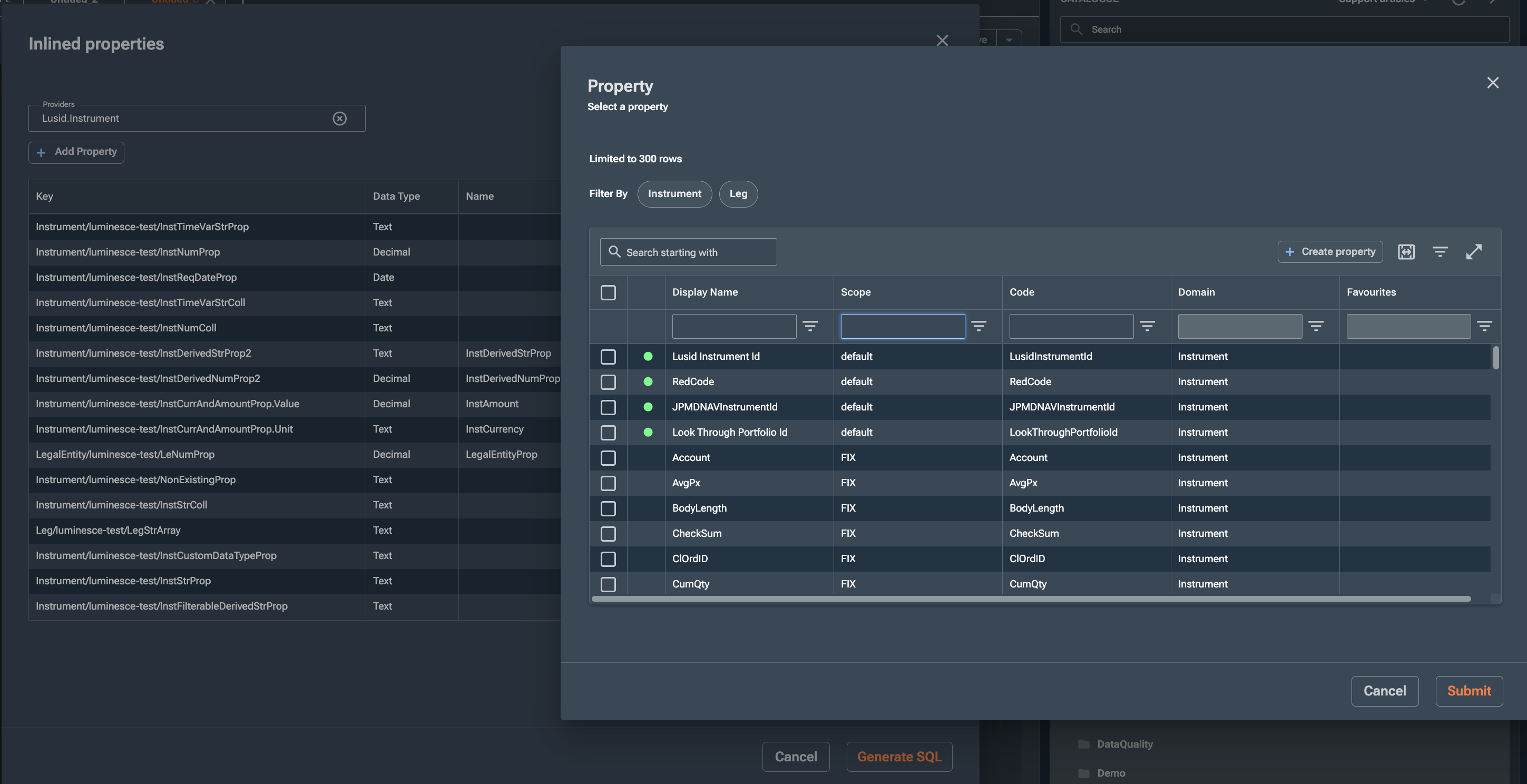
Select Add Property and choose one or more properties. Only properties in the provider's domain are offered, such as
Instrumentproperties for an instrument provider.For each property, check or change:
Name: the column's name in the provider. It defaults to the property's display name, and must be unique among the provider's columns.
Is Main: whether the column is returned by
select ^.Description: shown beside the column in the Catalogue.
The Key and Data Type come from the property's definition.
Select Generate SQL. The designer closes and puts a
Sys.Admin.Lusid.Provider.Configurequery into the editor.Run the query, then select Refresh in the Catalogue to see the new columns.
Method 2: Change or remove inlined properties
Open the designer and choose the provider again. Change a property's Name, Is Main or Description, or select Delete on its row to remove it, then generate and run the query.
The generated query sets the provider's whole list of inlined properties, so a property you delete from the table is removed from the provider when you run it.
Method 3: Edit a configuration query you've already written
Highlight a Sys.Admin.Lusid.Provider.Configure query in the editor, then select the inlined properties designer. It opens with that query's provider and properties filled in.
Provider versions created with ProviderNameExtension, such as Lusid.Instrument.Equity.Yield, appear in Providers too, so you can edit their properties the same way. See How do I create multiple versions of a Luminesce provider?
Troubleshooting
The provider isn't in the list
Only providers that support inlined properties are listed. To see them all, run select distinct Name from Sys.Registration where Name like 'Lusid.%.Factory'.
The new columns don't appear
Check that the query ran without errors, then select Refresh in the Catalogue.
Generate SQL is greyed out
Add at least one property, and check every row is filled in correctly.
Related articles
How do I configure Luminesce entity providers to read/write properties?, for every option the configuration query supports
Using Luminesce to write different kinds of property for LUSID entities