Before you can query something, you need to know what's there. The Catalogue in the Luminesce Query Editor lists every provider and view you're allowed to query, with each one's fields, what type they are and what they mean, so you can find the right table and column without leaving the editor.
Prerequisites
Access to the Luminesce Query Editor in the LUSID web app, under Data Virtualisation > Query Editor.
The Catalogue shows only the providers you have permission to use. If you expect to see one that isn't there, ask your LUSID administrator.
Methods
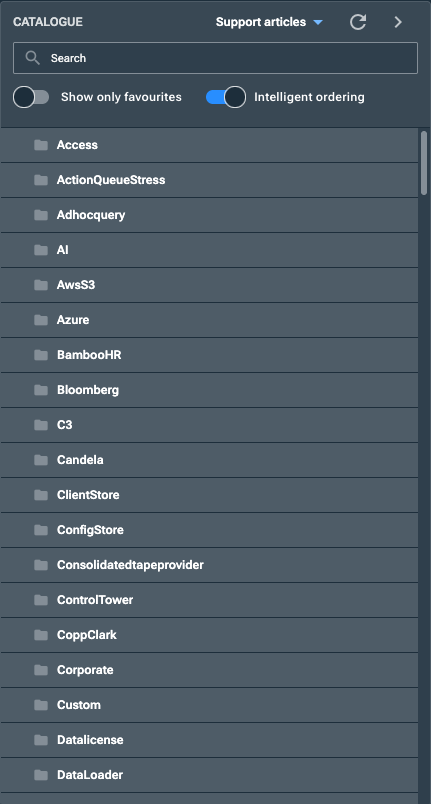
The Catalogue is on the right of the Query Editor. If it's collapsed, select < at the top right of the screen to open it. You may increase or decrease its width using the drag-handle to its left.
Method 1: Search for a provider
Type part of a provider's or view's name in Search, for example Instrument. The Catalogue shows only the ones that match.
Providers are grouped into folders by the first part of their name: Lusid.Instrument.Equity is in Lusid. A table icon marks a provider and an eye marks a view. The number after a name is how many fields it has.
Turn on Intelligent ordering to list everything alphabetically, or turn it off for the classic order, grouped by category. Your choice is remembered.
Method 2: See a provider's fields
Select a provider to open it. It lists its parameters and then its columns. Hover over a field to see its description and data type. Icons beside a field mark it as a Main Field, a Primary Key Field or a Parameter.
To use a provider in your query, select Copy table name on its row. Luminesce copies its name in square brackets, for example [Lusid.Instrument.Equity], ready to paste into the editor.
Method 3: Read a provider's documentation
Select Documentation Link on a provider's row to open its documentation. If it has more than one, select Documentation Links and choose one.
For links to the Luminesce documentation in general, example queries and help on functions, use the Support articles menu at the top of the Catalogue.
Method 4: See everything about a provider or view
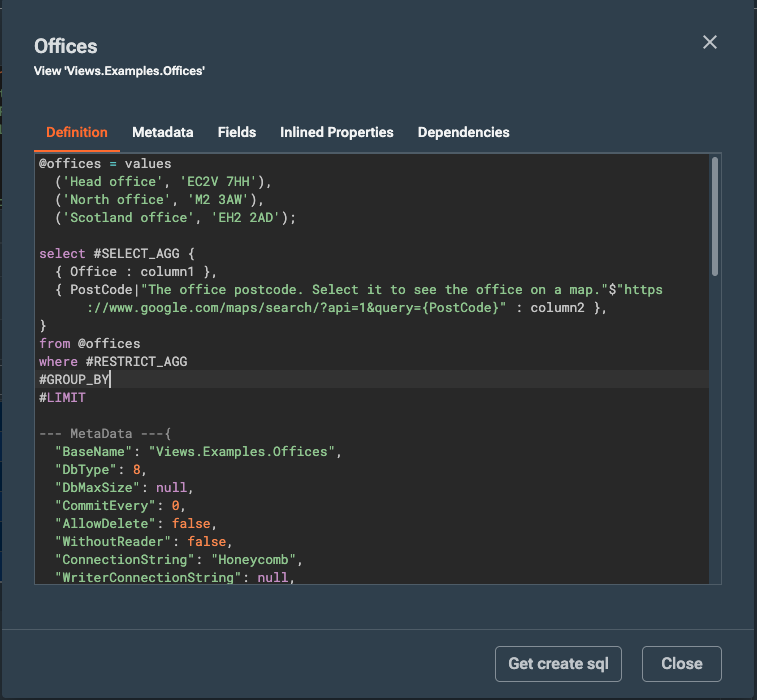
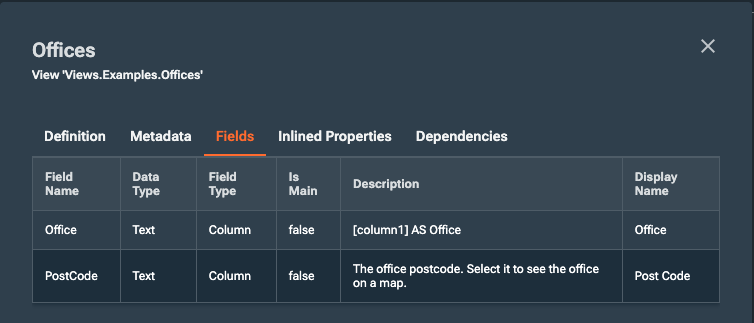
Select the information icon on a provider's row. A window opens with its name and description, and these tabs:
Tab | What it shows |
|---|---|
Definition | Views only. The SQL the view runs. |
Metadata | The provider's registration details, as keys and values. |
Fields | Every field, with its data type, whether it's a column or a parameter, whether it's a main field, its description and its display name. |
Inlined Properties | Any LUSID properties set up to appear as columns of the provider. |
Dependencies | What the provider or view depends on. |
Method 5: Change a view
To change a custom view, start from the SQL that created it:
Open the view's information window, as in Method 4.
Select Get create sql. Luminesce adds the SQL that creates the view to the editor.
Change it, then run it to update the view.
Method 6: Keep your favourites to hand
Select the star on a provider's row to make it a favourite. Turn on Show only favourites to list just those. Your favourites, and whether only they are shown, are remembered.
Method 7: See where a provider's data comes from
Where Luminesce knows how a provider or view is built, its row has Show table lineage, and its fields have Show field lineage. Select one to see, as a diagram, what the provider or field is built from. See How do I see where a value in my results came from?
Troubleshooting
A provider I expect isn't listed
Select Refresh at the top of the Catalogue to load it again, for example after a new provider has been set up or started on your own machine. If it's still missing, you may not have permission to use it. Ask your LUSID administrator.